
Skip to content
Hot News

Crypto Wallet Security Tips: How to Keep Your Cryptocurrency Safe

What Are NFTs? A Beginner’s Guide to Non-Fungible Tokens

What Is DeFi? A Beginner’s Guide to Decentralized Finance

What Is Crypto Mining? A Beginner’s Guide to How Bitcoin Are Mined

What Is a Crypto Wallet? Hot vs Cold Wallets Explained

How to Buy Cryptocurrency in the UK: A Beginner’s Step-by-Step Guide

Serverman | Tech Reviews | How-To Guides

Practical IT, Cybersecurity & AI — Explained Clearly

UK Business IT & Cybersecurity Solutions | Serverman

  • 2-in-1 Laptops44 products
  • Backup Drives11 product
  • Cable Tidy11 product
  • CPU'S55 products
  • Draytek Vigor88 products
  • Flipper Zero44 products
  • Keyboard & Mouse44 products
  • Laptops11 product
  • Monitors - TFT22 products
  • PC - Workstations11 product
  • PC Cases88 products
  • Plaud Note11 product
  • Remarkable55 products
  • Samsung Galaxy Watch 6 Classic22 products
  • Slip Printer11 product
  • Thermal Paste11 product
  • UPS - Uninterruptible Power Supply33 products
  • USB C Power Supply22 products
  • Yubico33 products
  • CyberSecurity Products22 products
  • Recommended CyberSecurity Books1010 products
  • Home
    • Shop
      • All Products
      • Welcome to the shopping Cart
      • Checkout
      • My account
    • Forum
      • Login to Our Discussion Community
      • New Topic
    • Contact Us
    • Privacy Policy
    • Cookie Policy (UK)
    • Affiliate Disclosure
    • Cookie Policy (EU)
    • Site Map
  • Everything Hardware
    • Everything Keyboard and Mouse
    • Everything ReMarkable
    • Everything Plaud Note
    • Everything Flipper Zero
    • Everything YubiKey
    • Everything Laptops
    • Everything PC Case
    • Everything Anker
    • Everything Support
      • Business Support Plans
      • Fix Your Home Computer: Expert Help for £99.99
    • Everything CPU
    • Everything Hardware How To
    • Brother QL-700 Review – Best Label Printer for Home and Small Business
    • SanDisk Ultra Flair 128GB Review – Best USB 3.0 Flash Drive for Speed and Reliability
  • Everything Software
    • Everything PowerShell
    • Everything DOS
    • Everything VPN
      • VPN Comparisons
      • How VPNs Work
      • Does a VPN Really make you anonymous
  • Everything Server
    • Everything NAS
    • Windows Server End of Life
  • Everything Cyber Security
    • Everything Virus & Malware
  • Everything Artificial Intelligence
    • AI in Business
    • AI for Builders Merchants
    • AI for Electrical Wholesalers
    • AI For Wholesale Distribution
    • Everything AI How To
  • Everything Web Hosting
  • Everything Crypto
Saturday, January 31, 2026
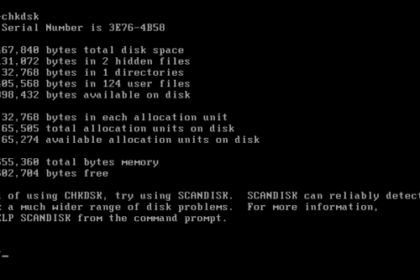
chkdsk
  • Everything DOS
  • Everything Software

What Is DOS?

What Is DOS?, DOS stands for Disk Operating System. It is a text-based system that allows users to control a computer by typing commands instead of clicking with a mouse. Before modern Windows interfa...
admin
Read More
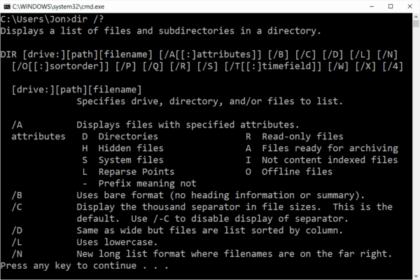
dir help command
  • Everything DOS
  • Everything Software

What Are DOS Commands?

What Are DOS Commands, DOS commands are text-based instructions used in the command line to control files, folders, and system functions. Many people still use DOS commands today through Command Promp...
admin
Read More
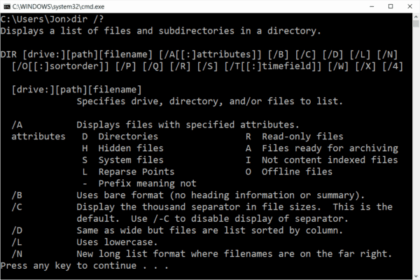
dir
  • Everything DOS

What Does the DIR Command Do?

What Does the DIR Command Do?, The DIR command is a DOS command used to list files and folders inside a directory. When you type dir into Command Prompt, Windows shows: This is usually the first DOS c...
admin
Read More
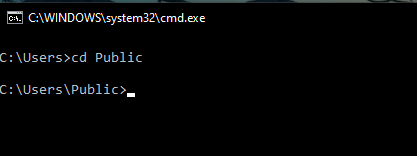
cd
  • Everything DOS

What Does the CD Command Do?

What Does the CD Command Do? The CD command (short for Change Directory) is a DOS command used to move between folders in Command Prompt. If DIR shows you what files and folders exist, CD lets you mov...
admin
Read More
cmd
  • Everything DOS

Open Command Prompt in Windows?

Open Command Prompt in windows (also called CMD) is a built-in Windows tool that allows you to run DOS commands by typing them instead of clicking with a mouse. There are several ways to open Command ...

admin
Read More
Flipper Zero GPIO Guide
  • Everything Flipper Zero

Flipper Zero GPIO Guide (2026): Step-by-Step Hardware Learning

Flipper Zero GPIO Guide , GPIO (General Purpose Input/Output) lets the Flipper Zero interact with physical electronic components. This is where many users hesitate because it sounds technical—bu...
admin
Read More
flipper zero bluetooth
  • Everything Flipper Zero

Flipper Zero Bluetooth (BLE) Guide (2026): What It Can Detect, How to Use It, and Its Limits

Flipper Zero Bluetooth, Bluetooth on the Flipper Zero is Bluetooth Low Energy (BLE) broadcast detection only. It is designed to help you see how devices advertise themselves wirelessly, not to connect...
admin
Read More
Flipper IR
  • Everything Flipper Zero

Flipper Zero Infrared (IR) Guide (2026): Step-by-Step Universal Remote Setup

Flipper Zero Infrared (IR) Guide, Infrared is one of the simplest and most useful parts of the Flipper Zero. Unlike NFC, RFID, or Sub-GHz, IR has very few restrictions, works reliably, and gives immed...
admin
Read More
Flipper Zero Sub-GHz Guide (2026): Step-by-Step How to Use It and What Hardware You Need Sub-GHz is the Flipper Zero feature that deals with wireless signals below 1 GHz. These signals are commonly used by household remotes, sensors, and older wireless devices. It is also the area with the most restrictions in modern firmware, which is why expectations need to be set correctly. This guide explains exactly what Sub-GHz does in 2026, how to use it step by step, and what add-ons (if any) are actually worth buying. What Sub-GHz on the Flipper Zero Is Used For Sub-GHz is typically used by: Wireless doorbells Weather stations Temperature and motion sensors Remote-controlled sockets Older garage and gate remotes Alarm sensors (your own systems only) With Sub-GHz, the Flipper Zero can: Detect Sub-GHz transmissions Identify frequency and modulation Show whether a signal is fixed or rolling code Save supported signals for analysis Help you understand why some systems are secure It does not bypass encryption or modern security systems. Very Important: Sub-GHz Expectations in 2026 In 2026 firmware: Most modern remotes use rolling codes or encryption Many signals can be detected but not saved Some frequencies are blocked by region rules This is normal and intentional. If Sub-GHz feels “limited”, that usually means the device you are testing is secure. What You Need to Use Sub-GHz Required: Flipper Zero only Optional (advanced users only): External Sub-GHz antenna (rarely needed) You do not need: Wi-Fi Dev Board Paid firmware Any illegal modifications Most users never need extra hardware for Sub-GHz learning. Before You Start: Check Region Settings (Critical) Sub-GHz will not work correctly if your region is wrong. Step-by-step: Open Sub-GHz Go to Settings Check your region (UK / EU / US as appropriate) Apply and restart if prompted If Sub-GHz suddenly “stops working”, this is the first thing to check. Step-by-Step: How to Scan a Sub-GHz Signal Open Sub-GHz Select Scan or Read Hold your remote or sensor 5–20 cm from the Flipper Press a button or trigger the sensor Watch the screen for detected signals What you’ll typically see: Frequency (e.g. 433.92 MHz) Signal type Rolling-code or fixed-code indication Encrypted or unsupported notices How to Confirm Sub-GHz Is Working (Beginner Test) To confirm Sub-GHz works properly: Use a simple device like: • A wireless doorbell • A cheap remote socket • A weather sensor If the Flipper detects frequency activity, Sub-GHz is functioning. What “Rolling Code Detected” Means This is one of the most common questions. Rolling code means: The signal changes every time Replay is blocked Security is working The Flipper Zero will detect these signals but will not save or replay them. This is expected behaviour. What “Encrypted” or “Unsupported” Means This means: The system uses modern security The Flipper cannot interact with it The device is doing its job It does not mean your Flipper is broken. Step-by-Step: Saving a Supported Sub-GHz Signal Only some signals can be saved. Scan a Sub-GHz device If the Flipper allows it, select Save Name the signal clearly Store it in your files Saved signals are usually from very simple, fixed-code devices. Why Most Garage and Car Remotes Do NOT Work This is a common misunderstanding. Modern systems use: Rolling codes Challenge-response encryption Time-based security The Flipper Zero cannot replay these, by design. If a video claims otherwise, it is outdated or misleading. Common Sub-GHz Problems and Fixes “Nothing is detected” • Check region settings • Replace remote battery • Increase distance slightly • Move away from metal or cars “It worked before an update” • Region reset • Power-saving enabled • Restart required “It detects but won’t save” • Rolling code • Encrypted system • Expected behaviour Best Beginner Sub-GHz Experiments Safe and educational tests: Compare two remotes (old vs new) Compare a doorbell vs a garage remote Observe rolling-code behaviour Document which household devices still use fixed codes This teaches more than replay ever would. Do You Need a Better Antenna? For most users: no. External antennas: Are for niche use Add complexity Often break region compliance The built-in antenna is sufficient for learning. When Sub-GHz Is Not the Right Tool If your goal involves: Cars Modern garages Smart locks Commercial alarm systems Those are intentionally protected and cannot be controlled. Final Thoughts on Sub-GHz Sub-GHz is the section that best demonstrates why modern security exists. It is less about control and more about understanding. Once you accept that, it becomes one of the most valuable learning tools on the Flipper Zero. Next in the Series The next deep dive is: Flipper Zero Infrared (IR) Guide: Step-by-Step Universal Remote Setup
  • Everything Flipper Zero

Flipper Zero Sub-GHz Guide (2026): Step-by-Step How to Use It and What Hardware You Need

Flipper Zero Sub-GHz Guide, Sub-GHz is the Flipper Zero feature that deals with wireless signals below 1 GHz. These signals are commonly used by household remotes, sensors, and older wireless devices....

admin
Read More
123...31

Newsletter

Stay updated with our weekly newsletter. Subscribe now to never miss an update!

    • Affiliate Disclosure
    • Brother QL-700 Review – Best Label Printer for Home and Small Business
    • Checkout
    • Contact Us
    • Cookie Policy (EU)
    • Cookie Policy (UK)
    • Fix Your Home Computer: Expert Help for £99.99
    • My account
    • Privacy Policy
    • SanDisk Ultra Flair 128GB Review - Best USB 3.0 Flash Drive for Speed and Reliability
    • Shop
    • Site Map
    • Topics
      • Login to Our Discussion Community
      • New Topic
    • Welcome to the shopping Cart
    Copyright Serverman.co.uk © 2026 Serverman | Tech Reviews | How-To Guides
    Serverman | Tech Reviews | How-To Guides