How to Remove a Virus – Start Here
If you’re searching for how to remove a virus, this guide will walk you through the exact steps to clean your Windows PC safely and for free. You don’t need technical skills, and you don’t need to pay for expensive software. Just follow each step carefully to remove viruses, malware, and unwanted programs from your computer.
Why Learning How to Remove a Virus Matters
Most home users assume they must pay for support, but learning how to remove a virus yourself can save money and prevent further damage. Viruses can slow your PC, steal passwords, show pop-ups, or corrupt files. The faster you act, the easier they are to remove.
Step 1: Disconnect From the Internet Before You Remove a Virus
One of the most important parts of learning how to remove a virus is stopping it from spreading.
Do this immediately:
- Turn off Wi-Fi
- Unplug your Ethernet cable
- Disable hotspot connections
This stops the virus from downloading more components or sending your data elsewhere.
Step 2: Back Up Your Important Files Safely
Before going further with how to remove a virus, protect your files.
Do this carefully:
- Plug in a USB or external drive
- Copy only documents, photos, spreadsheets
- Do NOT copy program files or installers
- Unplug the drive once finished
This ensures your important data is safe in case further repair steps are required.
Step 3: Restart Your PC in Safe Mode
Safe Mode runs Windows with only essential services, making it easier to remove the virus.
To enter Safe Mode:
- Click Start → Power → Restart
- Hold Shift and click Restart
- Choose Troubleshoot → Advanced Options → Startup Settings → Restart
- Select Safe Mode or Safe Mode with Networking
Running in Safe Mode is a core step in how to remove a virus because most malware cannot start in this environment.
Step 4: Remove Suspicious Programs Manually
Many infections start with unwanted software. Before scanning, manually remove questionable programs.
To do this:
- Go to Start → Settings → Apps → Installed Apps
- Sort by Install Date
- Look for any programs you do not recognise
- Click Uninstall
Manual removal is one of the fastest ways to begin learning how to remove a virus from your system.
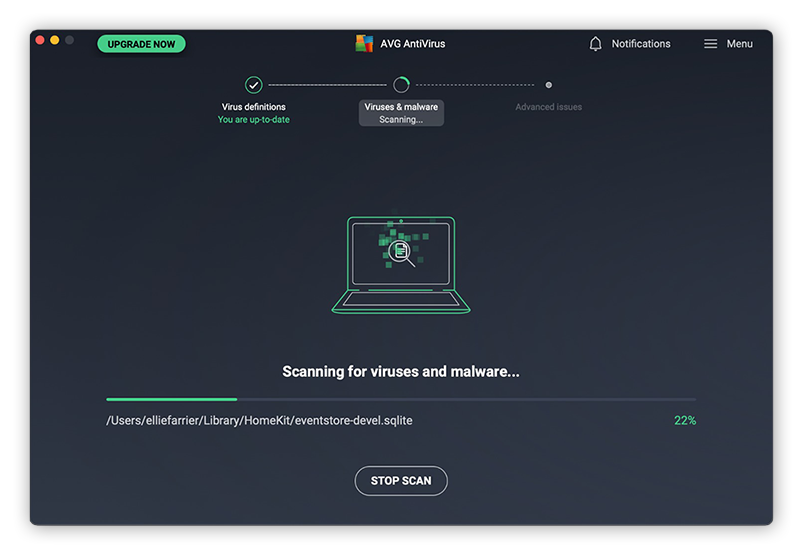
Step 5: Run a Full Scan Using Windows Security
Windows Security (Defender) is free and surprisingly effective when learning how to remove a virus.
Steps:
- Open Windows Security
- Click Virus & threat protection
- Choose Scan options
- Select Full Scan
- Let the scan complete
This process may take an hour, but it identifies the majority of common threats.
Step 6: Use a Second Free Virus Removal Tool
A second scanner increases your success rate when working on how to remove a virus because different tools detect different threats.
Do this next:
- Download a reputable free malware scanner
- Run a Full Scan
- Remove or quarantine everything it finds
- Restart your PC
Using two scanners (one built-in, one external) significantly improves your chance of full removal.
Step 7: Clean and Reset Your Browser
Many infections hide inside browsers, so browser cleanup is essential for how to remove a virus completely.
Check your browser for:
- Unknown extensions
- Changed search engines
- Modified homepages
Then reset the browser to defaults to remove any remaining adware or hijackers.
Step 8: Reconnect to the Internet and Update Everything
Once your scans are complete, reconnect your PC and update:
- Windows Updates
- Your browser
- Security tools
Keeping your system updated is part of long-term protection after learning how to remove a virus successfully.
Step 9: Change Your Passwords From a Clean Device
If your computer was infected, passwords may have been stolen.
Do this on another device (not the infected PC):
- Change email password
- Change bank or PayPal password
- Change social media and shopping passwords
- Enable two-factor authentication
This step protects you in case the virus included keyloggers.
Step 10: When You Should Get Professional Help
While this guide covers everything needed for most situations, there are times where expert help is recommended, especially if:
- The virus returns after removal
- Your computer will not boot
- Windows Security refuses to open
- Files have been encrypted (ransomware)
If these occur, professional removal may be faster and safer.
Summary: How to Remove a Virus Successfully
By following these steps, you now know exactly how to remove a virus without paying for IT support. You’ve disconnected your PC, backed up your data, entered Safe Mode, removed suspicious programs, scanned with two tools, reset your browser, and updated your system.
If your computer is clean and running normally, move on to the next guide:
Next Post: Pop-Ups Won’t Stop? How to Remove Browser Hijackers in Chrome/Edge (Free Fix)