Flipper Zero 2026 Setup Guide: What’s New and How to Get Started Fast
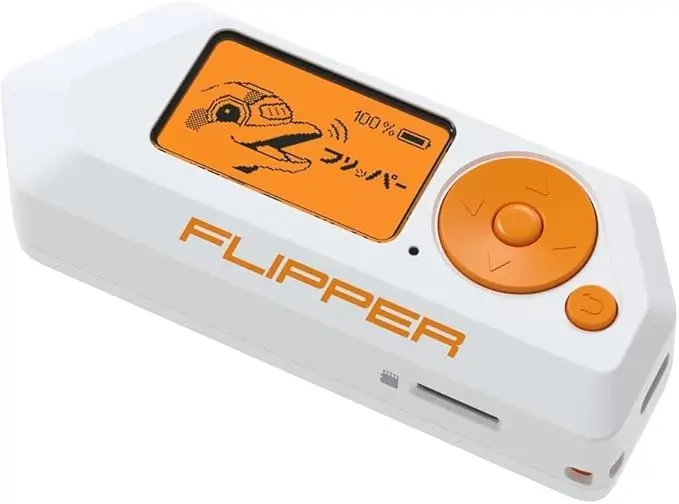
If you’ve just bought a Flipper Zero in 2026, this guide walks you through everything you need to get started quickly. The device has had several updates since its original launch, so the setup process is now smoother, faster, and offers more features out of the box. This guide explains each step clearly and focuses on safe, legal, practical use.
What’s New in Flipper Zero for 2026
The firmware and App Hub have been modernised with improved signal detection, NFC stability, better Sub-GHz performance, and more compatible devices. The mobile app now provides real-time diagnostics, making it easier to troubleshoot and manage your Flipper Zero from your phone.
Step 1: Charge the Device and Power It On
Before doing anything, fully charge the Flipper Zero using a standard USB-C cable. A full charge ensures the device won’t power off during setup or firmware updates. Once charged, hold the power button to turn it on. You’ll see the updated 2026 splash screen and onboarding prompts.
Step 2: Connect the Flipper Zero to the Mobile App
Download the official Flipper Mobile App from the App Store or Play Store. Open the app and choose “Pair New Device.” Turn on Bluetooth on the Flipper Zero and confirm the pairing request. The app will automatically read your device’s firmware version and notify you if an update is available.
Step 3: Install the Latest Firmware
Flipper OS is updated frequently, and the 2026 version includes significant improvements. To update:
Open the mobile app
Select Firmware
Choose “Update to Latest Stable Version”
Wait for the install to complete; do not disconnect the device
Once done, the Flipper will reboot into the new OS with improved stability, updated apps, and compatibility fixes.
Step 4: Explore the App Hub and Install Essential Tools
In 2026, the App Hub has become the core of the Flipper Zero ecosystem. It includes free tools for learning, testing devices, and exploring different technologies. Some beginner-friendly examples include:
RFID Explorer – to understand and read your own RFID tags
NFC Tools – for scanning NFC cards and tags you legally own
Infrared Remote – for testing TVs, monitors, and home entertainment equipment
Sub-GHz Scanner – for educational testing of compatible household devices
Installing apps is simple: open App Hub on the mobile app, choose an app, and tap Install.
Step 5: Read Your First RFID or NFC Tag
A common beginner task is reading an ID badge, gym card, or key fob that you personally own. Hold the card to the back of the Flipper Zero and select the relevant reading mode. The device will identify the tag type and display the information it can safely show. This helps you learn how wireless cards work and what makes some more secure than others.
Step 6: Test the Infrared Remote Features
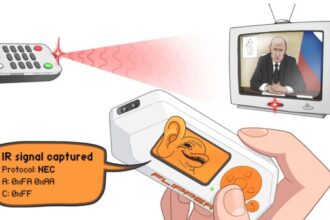
The Flipper Zero includes an infrared transmitter that works with many household devices. Open the Infrared app, select a device type, and test the available remote options. This is a safe, practical way to understand how different signal types behave.
Step 7: Set Up Cloud Sync for Backups
In 2026, Cloud Backup has become more reliable. You can now back up your device settings, saved signals, and custom apps. This ensures you never lose your data, even if you reset the device or upgrade firmware.
To enable backups:
Open Mobile App
Go to Settings
Select Cloud Sync
Enable automatic syncing
Step 8: Learn How to Use Sub-GHz Safely
Sub-GHz is one of the most popular features, but it’s also the area with the most restrictions. In this guide, we focus only on safe and legal uses:
Testing your own remotes
Learning how signal repeaters work
Understanding how wireless sensors operate
Checking which frequencies your devices use
The 2026 firmware prevents the use of restricted bands, keeping everything compliant.
Step 9: Try Simple Home Projects
Once your Flipper Zero is set up, here are some beginner projects:
Scan your home’s remotes to understand their signal patterns
Read NFC tags on household items like speakers or Wi-Fi-enabled products
Create your own NFC tag to automate a phone task
Use the Sub-GHz analyser to identify wireless doorbells or weather sensors
These projects help you get comfortable without touching anything that shouldn’t be tested.
Step 10: Keep Your Firmware Updated Regularly
Flipper OS receives continuous updates throughout the year, often adding:
Better app support
Bug fixes
New features
Improved device compatibility
Updating your device every few months ensures maximum performance and security.