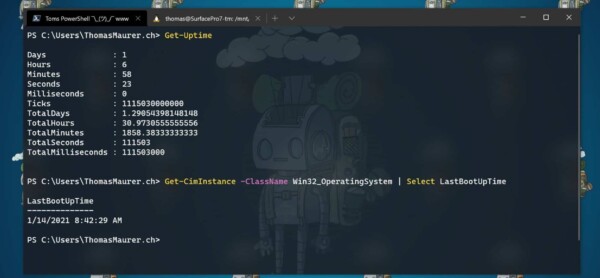
What this does
This PowerShell command shows the exact date and time a Windows computer was last restarted. It is one of the quickest ways to confirm whether a reboot may resolve performance or update issues.
When you’d use this
- A PC is running slowly
- Windows Updates are pending
- An application is behaving unexpectedly
- You want a fast system health check
PowerShell command (copy and paste)
(Get-CimInstance Win32_OperatingSystem).LastBootUpTime
What the output means
- The date and time displayed is the last full system boot
- If this was several days or weeks ago, a restart is often recommended
- This confirms a real reboot, not just sleep or lock screen usage
Common mistakes to avoid
- Confusing sleep or hibernate with a restart
- Assuming updates are complete without checking reboot time
- Forgetting Fast Startup can affect perceived uptime
Efficiency tip (human-readable format)
(Get-CimInstance Win32_OperatingSystem).LastBootUpTime.ToString("dd-MMM-yyyy HH:mm")
This format is easier to read and ideal for:
- Support notes
- Screenshots for users
- Quick reporting
Why this improves efficiency
- No need to open Event Viewer
- No clicking through system menus
- Works instantly on most Windows PCs
- Safe to run without administrator access