What this does
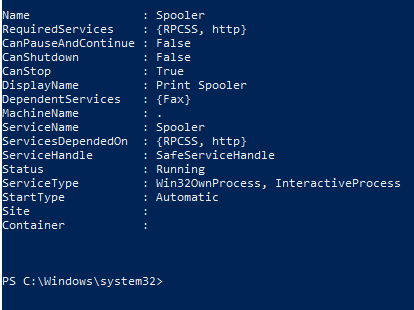
This PowerShell command shows which Windows services are currently running or stopped. It is a fast way to Check Running Services and confirm whether an important background service is working without opening the Services console.
When you’d use this
- An application will not start
- A feature depends on a background service
- You need to confirm a service is running
- You want a quick system health check
Step 1: View all services
Get-Service
This lists every Windows service and its current status.
Step 2: Check a specific service
Get-Service -Name wuauserv
This checks the Windows Update service.
Step 3: Start or restart a service
Start-Service -Name wuauserv
Or restart it:
Restart-Service -Name wuauserv
What the output means
- Running – the service is active
- Stopped – the service is not running
- No error message usually means the command worked
Common mistakes to avoid
- Restarting services without understanding their purpose
- Forgetting administrator rights may be required
- Assuming a running service means the application is healthy
Efficiency tip (filter only running services)
Get-Service | Where-Object {$_.Status -eq "Running"}
This reduces noise and shows only active services.
Why this improves efficiency
- Faster than opening
services.msc - Perfect for remote troubleshooting
- Reduces unnecessary restarts
- Helps isolate root causes quickly