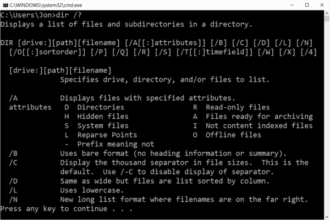
Open Command Prompt in windows (also called CMD) is a built-in Windows tool that allows you to run DOS commands by typing them instead of clicking with a mouse.
There are several ways to open Command Prompt, depending on what you are trying to do and whether Windows is working normally.
This guide shows all common methods, step by step.
Method 1: Open Command Prompt Using Search (Easiest)
This is the most common and beginner-friendly method.
Steps:
- Click the Start menu
- Type Command Prompt or CMD
- Click Command Prompt in the results
Command Prompt will open in a normal user mode.
Use this for:
- Learning DOS commands
- Basic file and folder tasks
- Safe everyday use
Method 2: Open Command Prompt as Administrator
Some DOS commands require administrator privileges to work correctly.
Steps:
- Click the Start menu
- Type Command Prompt or CMD
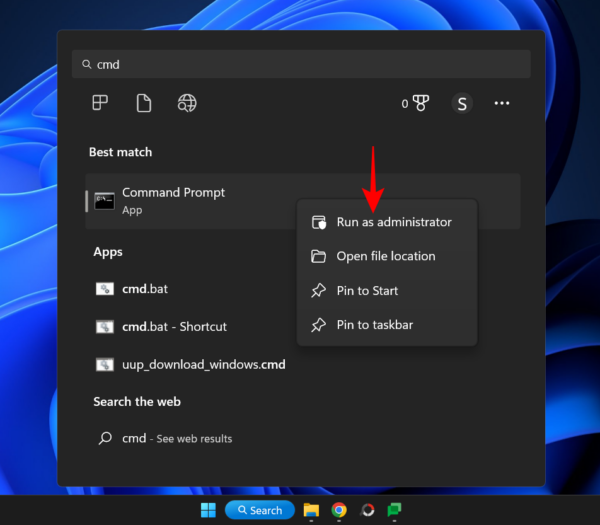
- Right-click Command Prompt
- Select Run as administrator
- Click Yes if prompted
You will see “Administrator” in the title bar when it opens.
Use this for:
- System repairs
- Disk checks
- Fixing Windows errors
Method 3: Open Command Prompt Using Run
This is a fast keyboard-based method.
Steps:
- Press Windows Key + R
- Type
cmd - Press Enter
Command Prompt opens instantly.
This is useful when:
- You prefer keyboard shortcuts
- You need quick access
Method 4: Open Command Prompt from File Explorer
You can open Command Prompt directly inside a folder.
Steps:
- Open File Explorer
- Navigate to any folder
- Click in the address bar
- Type
cmd - Press Enter
Command Prompt opens already set to that folder.
This is ideal for:
- File management
- Copying or deleting files
- Running commands in a specific location
Method 5: Open Command Prompt When Windows Will Not Start
When Windows will not load properly, Command Prompt is still available through recovery tools.
Steps (simplified):
- Restart your computer
- Interrupt startup 2–3 times to trigger recovery
- Select Troubleshoot
- Choose Advanced options
- Select Command Prompt
This method is used for:
- Repairing Windows
- Recovering files
- Advanced troubleshooting
We cover these commands in the Windows Repair section.
What Is the Difference Between Command Prompt and PowerShell?
Many users see both and are unsure which to use.
- Command Prompt runs DOS commands
- PowerShell is more advanced and script-based
For beginners and DOS learning:
Start with Command Prompt
DOS knowledge transfers cleanly into PowerShell later.
Common Problems When Opening Command Prompt
If Command Prompt:
- Opens then closes immediately
- Shows access denied errors
- Is blocked by a company policy
These issues are covered in our DOS Problems & Fixes section.
Where to Go Next
Now that you can open Command Prompt, the next step is learning your first command.
Recommended next guides:
- DOS Commands for Beginners
- DIR Command Explained (List Files and Folders)
- Basic DOS Commands (A–Z)
Start slow. One command at a time.