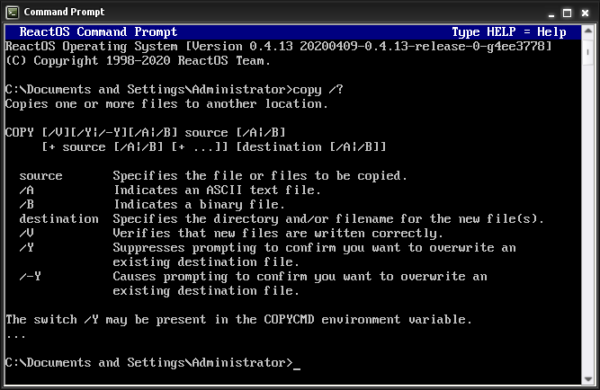
What Does the COPY Command Do, The COPY command is a DOS command used to duplicate files from one location to another.
It allows you to:
- Copy a file to a different folder
- Make backups
- Move files between drives (by copying)
COPY works on files, not folders.
Basic COPY Command Syntax
The basic structure is:
copy source destination
Example:
copy file.txt C:\Backup
This copies file.txt into the C:\Backup folder.
How to Use the COPY Command (Step by Step)
Steps:
- Open Command Prompt
- Navigate to the folder containing the file (use
cd) - Type:
copy example.txt C:\Temp - Press Enter
You will see a confirmation that the file was copied.
Copying a File to the Same Folder (Rename While Copying)
You can create a duplicate with a new name.
Example:
copy report.txt report_backup.txt
This keeps both files in the same folder.
Copying Files With Spaces in the Name
Use quotation marks.
Example:
copy "annual report.docx" "D:\Reports\annual report.docx"
Without quotes, the command will fail.
Copying Multiple Files at Once
You can use wildcards.
Example:
copy *.txt C:\TextFiles
This copies all .txt files to the destination.
Copying Files Between Drives
Example:
copy C:\Users\Stuart\Downloads\file.zip D:\Backups
This is commonly used for:
- USB drives
- External disks
- Backup locations
Common COPY Command Errors
“The system cannot find the file specified”
This usually means:
- The file name is wrong
- You are in the wrong folder
Use:
dir
to confirm the file exists.
“Access is denied”
This means:
- You do not have permission
- The destination requires administrator rights
Try reopening Command Prompt as Administrator.
Is COPY Safe to Use?
Yes.
COPY does not delete or overwrite files unless you confirm it.
It is one of the safest file commands to learn first.
COPY vs MOVE (Important Difference)
- COPY duplicates files
- MOVE relocates files
If you want the original file to stay where it is, use COPY.
What to Learn After COPY
Once you understand COPY, the next logical commands are:
MOVE– move files instead of copyingDEL– delete files safelyXCOPY– advanced copying (later)
Where to Go Next
Recommended next guides: