
When I first started looking for a professional label printer for my home office, I quickly became overwhelmed by the number of options available. After extensive research and reading countless reviews, I decided to purchase the Brother QL-700 label printer, and I can honestly say it has been one of the best investments I have made for my small business. This thermal label printer has completely transformed how I handle shipping, organization, and product labelling, making previously time-consuming tasks quick and straightforward.
First Impressions and Setup
The Brother QL-700 arrived well packaged and ready to use straight out of the box. Unlike some complicated office equipment that requires hours of setup and configuration, this label printer was incredibly easy to get started with. I simply connected it to my computer using the included USB cable, installed the software from the Brother website, and within ten minutes I was printing my first labels. The compact desktop design means it fits perfectly on my desk without taking up too much valuable workspace, which is particularly important in a home office environment where space is always at a premium.
Using the Brother QL-700 Daily
What really sets the Brother QL-700 apart from other label printers I have used in the past is how genuinely easy it is to operate. The software that comes with it is straightforward and intuitive, allowing me to design custom labels without needing any special design skills or technical knowledge. I regularly print shipping labels for my online business, address labels for mailings, and organizational labels for my filing system. The printer handles all these different tasks without any problems, and the quality of the printed labels is consistently excellent. The thermal printing technology means there are no ink cartridges or toner to worry about, which saves both money and hassle in the long run.
Finding Labels and Running Costs
One of my initial concerns when purchasing any specialist printer is whether replacement supplies would be readily available and affordable. I am pleased to report that Brother DK labels for the QL-700 are quite easy to find. You can purchase them directly from Brother, through major office supply retailers, and from various online marketplaces. I typically buy them in bulk online to keep costs down, and because the thermal printing method does not require ink or toner, my ongoing costs are limited to just the label rolls themselves. The standard address labels I use most frequently are very reasonably priced, and each roll lasts for hundreds of labels depending on the size you are printing.
Print Quality and Speed
The Brother QL-700 produces crisp, professional-looking labels at an impressive speed. It can print up to 93 standard address labels per minute, which is genuinely fast when you have a batch of packages to prepare for shipping. The print resolution is excellent, ensuring that barcodes scan properly and text is sharp and easy to read. I have never had any issues with smudging or fading, and the labels stick reliably to various surfaces including cardboard boxes, plastic containers, and paper files. The automatic cutter feature is particularly handy, cleanly cutting each label as it prints so you can simply peel and stick without needing scissors or additional tools.
Versatility for Different Label Types
What makes the Brother QL-700 such good value is its versatility. This is not just a label printer for one specific task. The QL-700 works with a wide range of Brother DK label sizes, from small address labels to larger shipping labels measuring up to 4 inches wide. I use it for creating name badges for events, printing file folder labels for my office organization system, making return address labels for correspondence, and generating barcode labels for inventory management. The ability to switch between different label sizes quickly and easily makes this thermal label printer genuinely useful for multiple purposes across both home and small business applications.
Software and Compatibility
The Brother P-touch Editor software that accompanies the QL-700 is user-friendly and offers plenty of customization options. You can import addresses from spreadsheets, add logos and graphics to your labels, choose from various fonts and formatting options, and save frequently used designs as templates. The software works smoothly with both Windows and Mac operating systems, which is important for households or small businesses using different computer platforms. I have also successfully used the QL-700 with third-party shipping software for my online business, and the integration has been seamless without requiring any complicated configuration.
Things to Consider
While I am extremely happy with my Brother QL-700, there are a couple of minor points worth mentioning. The printer connects via USB rather than wireless, which means it needs to be physically connected to your computer. For my setup this is not an issue, but if you need wireless printing capability, you might want to look at other models in the Brother QL range. Additionally, because it uses thermal printing technology, the labels can fade over time if exposed to direct sunlight or high temperatures. For most typical uses like shipping labels and file organization this is not a concern, but it is worth keeping in mind if you need labels that will be outdoors or in particularly bright conditions for extended periods.
Comparing the QL-700 to Other Label Printers
Before purchasing the Brother QL-700, I researched several competing label printers including other Brother models and devices from different manufacturers. What convinced me to choose this particular model was the combination of speed, reliability, and affordability. Some cheaper label makers I looked at were much slower and offered fewer label size options, while more expensive professional label printers seemed like overkill for a small business or home office. The QL-700 sits in a sweet spot where it offers professional features and performance without the premium price tag, making it an excellent choice for anyone who needs a dependable desktop label printer without spending hundreds of pounds on industrial equipment.
Final Thoughts and Recommendation
After several months of regular use, I can confidently recommend the Brother QL-700 label printer to anyone running a small business, managing an online shop, or simply wanting better organization at home. The ease of use makes it accessible even if you are not particularly technical, while the professional quality output means your labels look polished and businesslike. The availability of Brother DK labels through multiple retailers means you will never struggle to find supplies, and the overall running costs are very reasonable compared to traditional ink-based printers. Whether you are printing a handful of labels each week or processing dozens of packages daily, the Brother QL-700 handles the workload reliably and efficiently. This thermal label printer has genuinely made my life easier, and I would not hesitate to purchase it again if I needed to replace it. For the price point and performance, it represents excellent value for money and deserves serious consideration from anyone in the market for a professional label printer for home or small business use.
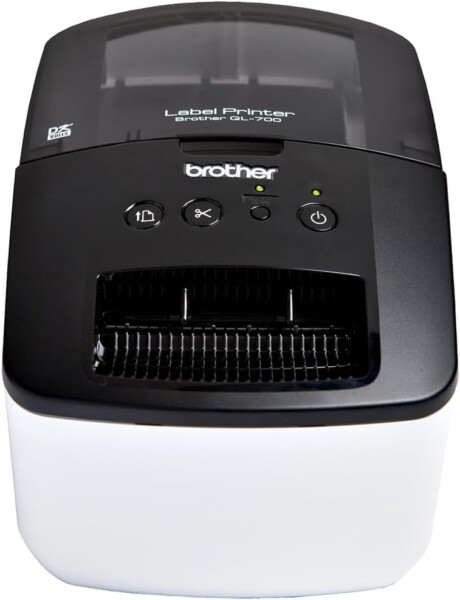
PROFESSIONAL LOOKING ADDRESS LABELS: Produce clear, crisp labels for your envelopes and packages, you can even add your company logo for a personalised finish.
P-TOUCH EDITOR SOFTWARE: Make light work of large address labelling jobs with the ability to connect to a PC or Mac and print data from an MS Excel or Word document.
CUSTOM LENGTH LABELS: Brother’s continuous roll option allows you to print labels up to 1 metre in length, ideal for personalised temporary signage.
PLUG AND PLAY: With P-touch editor software pre-loaded to the printer, set up is quick and easy. Plus with easy to install label rolls and a built-in automatic label cutter, address labelling is hassle free.
QUICK AND EASY LABELLING: Avoid the hassle of printing on sheet labels and print up to 93 quality labels per minute.