Can DOS Commands Really Fix Windows?, Yes. Many Windows repair tools rely on Command Prompt, which still understands DOS-style commands.
When Windows will not:
- Start properly
- Load the desktop
- Repair itself automatically
Command Prompt is often the last and most effective option.
This guide explains when and how DOS commands are used to repair Windows, safely and step by step.
When You Should Use Command Prompt for Windows Repair
Use Command Prompt when:
- Windows fails to boot
- Startup Repair does not work
- Files are corrupted
- You need to recover important data
- You are following official repair instructions
This is common in Windows recovery environments.
How to Open Command Prompt in Windows Recovery
If Windows will not start normally:
Basic steps (simplified):
- Restart your PC
- Interrupt startup 2–3 times
- Select Troubleshoot
- Choose Advanced options
- Select Command Prompt
You may be asked to sign in with your Windows account.
Essential DOS Commands Used in Windows Repair
These are the most commonly used commands during repair.
DIR – Check Files and Drives
Used to:
- Confirm drives are accessible
- Find Windows folders
- Locate important files
Example:
dir C:
If Windows is not on C:, try:
dir D:
CD – Navigate to Repair Locations
Used to move into folders where repairs are run.
Example:
cd Windows
CHKDSK – Check Disk for Errors
Checks and repairs disk problems.
Example:
chkdsk C: /f
This command:
- Scans the disk
- Fixes file system errors
It may take time. Do not interrupt it.
SFC – System File Checker
Scans and repairs corrupted system files.
Example:
sfc /scannow
This command:
- Verifies Windows system files
- Replaces damaged files automatically
Very commonly used in repair guides.
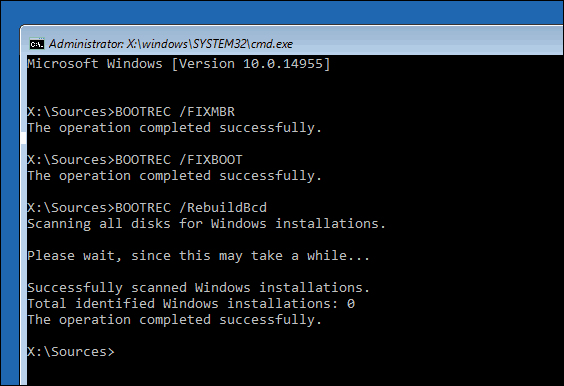
BOOTREC – Fix Boot Problems
Used when Windows will not boot.
Common examples:
bootrec /fixmbr
bootrec /fixboot
bootrec /scanos
bootrec /rebuildbcd
These commands repair:
- Boot records
- Startup configuration
Using DOS Commands to Recover Files
Before reinstalling Windows, files can often be copied to another drive.
Example:
copy C:\Users\YourName\Documents D:\Backup
This allows you to:
- Save important files
- Recover documents
- Protect data before repairs
Common Windows Repair Mistakes to Avoid
Avoid:
- Deleting system folders
- Running commands you do not understand
- Interrupting disk checks
- Guessing drive letters
Always:
- Use
dirfirst - Confirm the correct drive
- Follow instructions exactly
Is Using DOS to Repair Windows Safe?
Yes — when used carefully.
Most repair commands:
- Do not delete personal files
- Are designed to fix corruption
- Are used by IT professionals daily
However:
- Boot and disk commands should be used deliberately
- Never rush repair steps
When DOS Repair Will Not Work
Command Prompt may not fix:
- Failing hardware
- Physically damaged drives
- Severe corruption
In those cases:
- Data recovery tools
- Drive replacement
- Professional repair may be required
Where to Go Next
Recommended next guides:
Related Posts
- What Is DOS?
- What Are DOS Commands?
- DOS Commands List (Easy Reference)
- How Do You Open Command Prompt in Windows?
- DOS Commands Not Working? Start Here
- Command Prompt vs PowerShell
Checking if Your Repairs Were Successful
After running repair commands, it’s important to verify they worked before you consider the issue resolved. Some repairs fix problems silently, whilst others display progress messages on screen. Knowing what to expect helps you decide whether to restart or run additional commands.
What to look for whilst commands run:
- CHKDSK — Watch for “Windows has made repairs” in the final report, or note any error counts shown. If CHKDSK finds problems but cannot fix them (files locked by Windows), you may need to schedule the repair for the next restart and try again.
- SFC — Look for “Windows Resource Protection found corrupt files and successfully repaired them” or “No integrity violations were found”. If it cannot repair files, run a full system update first before trying SFC again.
- BOOTREC — These commands complete silently with no output. After running all four bootrec commands, restart your PC immediately to test whether Windows boots.
Testing after you restart:
Once Windows restarts, observe each step carefully:
- Does the boot screen appear? (If it hangs, the repair did not work.)
- Does Windows reach the login screen?
- Can you sign in with your password?
- Does the desktop load without freezing or showing errors?
- Can you open applications like File Explorer or your web browser?
If Windows still will not start or behaves abnormally, restart back into Recovery Environment and try additional commands. Repairs often work best when combined—for example, running BOOTREC followed by SFC can resolve problems that either command alone cannot fix.
If repairs still do not work:
Check the Event Viewer for error details that reveal what is still failing. From Command Prompt, type:
wevtutil qe System /c:10 /rd:true /f:text
This displays recent system errors with codes. Document these codes—they help IT professionals identify whether the problem is software corruption or failing hardware requiring replacement.