What Does the CLS Command Do?, The CLS command (short for Clear Screen) is a DOS command used to clear all text from the Command Prompt window.
It does not:
- Delete files
- Stop running commands
- Affect your system
It simply gives you a clean screen to work from.
Basic CLS Command Syntax
The command is extremely simple:
cls
There are no options or switches.
How to Use the CLS Command (Step by Step)
Steps:
- Open Command Prompt
- Type:
cls - Press Enter
All previous output disappears instantly.
When Should You Use CLS?
CLS is commonly used when:
- The screen is cluttered with output
- You want to focus on a new task
- You are following step-by-step guides
- You are demonstrating commands to others
It improves readability and reduces mistakes.
Does CLS Undo Anything?
No.
CLS:
- Does not undo commands
- Does not reverse actions
- Does not affect files or folders
It only clears what you see on the screen.
Common CLS Questions
“Did CLS Delete My Work?”
No.
Any files created, moved, or deleted remain unchanged.
“Why Do People Use CLS So Often?”
Because DOS output scrolls quickly.
CLS helps users reset their view and stay organised.
CLS vs Closing Command Prompt
- CLS → clears the screen, keeps session open
- EXIT → closes Command Prompt completely
CLS is preferred when you want to continue working.
Is the CLS Command Safe?
Yes.
CLS is one of the safest DOS commands available.
It can be used freely without risk.
What to Learn After CLS
The next commands improve confidence and navigation:
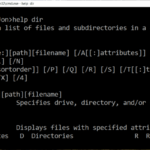
HELP– see available DOS commandsEXIT– close Command Prompt safely
These complete the beginner essentials.
Where to Go Next
Recommended next guides:
- HELP Command Explained (List DOS Commands)
- EXIT Command Explained (Close Command Prompt)
- DOS Commands A–Z Index
Related Posts
- What Is DOS?
- What Are DOS Commands?
- DOS Commands List (Easy Reference)
- How Do You Open Command Prompt in Windows?
- DOS Commands Not Working? Start Here
- Command Prompt vs PowerShell
CLS in PowerShell vs Command Prompt
Whilst CLS works in both Command Prompt and PowerShell, their behaviour differs slightly. Understanding these differences prevents confusion if you switch between the two shells regularly.
Command Prompt: CLS clears the screen completely and quickly. The command history remains accessible via the Up arrow key, even though the output is gone from view. This is the traditional DOS behaviour you would expect.
PowerShell: CLS works identically to Command Prompt in Windows 10 and 11. Typing cls clears the terminal window instantly. However, PowerShell users also have an alternative: Clear-Host. Both commands do exactly the same thing, but Clear-Host is the “PowerShell way” and is considered more explicit in scripts.
Which should you use in practice?
CLS— Works in both shells, faster to type, more universal across Windows versionsClear-Host— PowerShell-specific, clearer intent, preferred within scripts
In scripts and batch files: Use CLS for Command Prompt batch files (.bat files). For PowerShell scripts (.ps1 files), either works, but Clear-Host is more idiomatic and reads clearer in automation workflows.
A common misconception: Some users believe CLS doesn’t work in PowerShell because they’ve been told PowerShell is fundamentally different from Command Prompt. The truth is straightforward: CLS works fine in both. If you find CLS isn’t responding in PowerShell, verify:
- You’ve typed it correctly (no trailing spaces)
- You’ve pressed Enter after typing the command
- Your PowerShell execution policy permits standard commands (rarely an issue)
For most users, CLS remains the simpler and more universal choice across both shells. It is cross-compatible, requires minimal typing, and works consistently whether you are using Command Prompt or PowerShell on Windows 7, 10, 11, Server editions, or newer versions.