
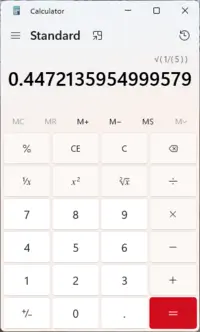
Using the Windows calculator has evolved significantly from the simple arithmetic tool many remember. Today’s Windows calculator is a powerful application that serves everyone from students solving equations to programmers converting binary code.
When you first open the calculator, you’ll see the Standard mode interface. This clean, intuitive design includes a number pad and basic operation buttons. But beneath this simple surface lies a comprehensive toolset that can handle complex calculations across multiple disciplines.
The modern calculator automatically saves your work as you type. You can resize the window to suit your workflow, and the interface adapts seamlessly. This flexibility makes using the Windows calculator more efficient than reaching for a physical calculator or opening a separate application.
Accessing and Opening Your Calculator Quickly
Getting to your calculator shouldn’t slow you down. Press Windows + R to open the Run dialog, then type “calc” and hit Enter. This method works across all Windows versions and takes less than three seconds.
For even faster access, create a custom keyboard shortcut. Right-click the Calculator app, select Properties, then click in the Shortcut key field and press your chosen combination. Many users prefer Ctrl + Alt + C because it’s easy to remember and doesn’t conflict with other shortcuts.
You can also pin the calculator to your taskbar. Simply search for “Calculator” in the Start menu, right-click the app, and select “Pin to taskbar.” Now you’re just one click away whenever you need to crunch numbers.
Exploring the Six Calculator Modes
Using the Windows calculator becomes far more powerful when you discover its six distinct modes. Each mode is purpose-built for specific tasks, transforming this tool from basic to professional-grade.
Standard Mode for Everyday Calculations
Standard mode handles your daily arithmetic needs. Addition, subtraction, multiplication, and division are straightforward. But you’ll also find percentage calculations, square root functions, and basic memory operations.
This mode includes everything most people need for household budgeting, shopping calculations, or quick number work. The clean interface means you won’t get distracted by advanced features you don’t need.
Scientific Mode for Advanced Mathematics
Switch to Scientific mode by clicking the menu icon and selecting it, or press Alt + 2. This mode transforms your calculator into a tool capable of trigonometric functions, logarithms, and exponential calculations.
Students tackling calculus or physics problems will appreciate the degree and radian options for angular calculations. The mode includes functions like sine, cosine, tangent, and their inverse operations. You can calculate natural logarithms, base-10 logarithms, and work with the mathematical constant e (approximately 2.71828).
Scientific mode maintains the functionality of Standard mode while adding these advanced operations. You don’t lose access to basic arithmetic—you simply gain more capabilities.
Programmer Mode for Binary and Hexadecimal Work
Programmer mode caters to developers and IT professionals working with different number systems. Press Alt + 3 to switch, and you’ll see options for binary (base 2), octal (base 8), decimal (base 10), and hexadecimal (base 16) calculations.
The bit-toggling keypad lets you click individual bits to switch them between 0 and 1, with support for up to 64 bits. As you toggle bits, the values update instantly across all number systems displayed at the top of the window.
This mode includes logical operators essential for programming: AND, OR, XOR, and NOT. You’ll also find bit-shifting operations like left shift, right shift, rotate left, and rotate right. These functions are crucial for low-level programming and digital electronics work.
Graphing Mode for Visual Mathematics
Graphing mode brings equation visualization directly into your calculator. You can plot functions on a coordinate plane, making it easier to understand mathematical relationships and identify solutions.
Enter your equation, and the calculator generates a graph automatically. You can zoom in or out, adjust the viewing window, and analyze where functions intersect. This feature proves invaluable for students learning algebra and calculus.
Date Calculation for Time-Based Math
Need to know how many days until a deadline? Date calculation mode handles time arithmetic effortlessly. Calculate the difference between two dates down to the exact day, or add and subtract specific periods from any date.
This mode helps with project planning, age calculations, contract periods, and any scenario where you need precise date mathematics. The results display in years, months, and days for easy interpretation.
Converter Mode for Unit Transformations
Converter mode eliminates the need to search online for conversion factors. It handles currency, volume, length, weight and mass, temperature, energy, area, speed, time, power, data, pressure, and angle conversions.
Select your input unit, enter the value, and instantly see the result in your target unit. The calculator maintains precision across conversions, making it reliable for both casual use and professional applications.
Mastering Memory Functions for Complex Calculations
Using the Windows calculator’s memory features prevents errors in multi-step calculations. Instead of writing down intermediate results or trying to remember numbers, store them directly in the calculator.
The memory buttons (MS, MR, M+, M-, MC) appear in Standard, Scientific, and Programmer modes. Press MS to save your current result to memory. When you need that number later, press MR to recall it instantly.
The M+ button adds your current display value to the stored memory number—perfect for running totals. Similarly, M- subtracts from memory. These functions let you build complex calculations step by step without losing track of intermediate values.
You can actually store multiple numbers in memory simultaneously. The memory pane shows all stored values, and you can click any of them to use in your current calculation. Click MC to clear all memory when you start fresh calculations.
Remember that memory values don’t persist between sessions. When you close the calculator, all stored memory clears automatically.
Utilizing the History Feature
The history function tracks every calculation you perform during your session. Press Ctrl + H to toggle the history pane, or click the clock icon in the top-right corner.
Your calculation history remains available even when you switch between modes. This persistence means you can perform a calculation in Standard mode, switch to Scientific for a different operation, then return to review your earlier work.
Clicking any calculation in your history loads it back into the calculator’s input area. This feature is perfect for verifying previous work or using earlier results in new calculations.
The history pane includes a trash icon that clears all entries instantly. Like memory, your history erases when you close the application, so save any calculations you’ll need for future reference.
Essential Keyboard Shortcuts for Speed
Keyboard shortcuts dramatically increase your efficiency when using the Windows calculator. Instead of clicking with your mouse, keep your hands on the keyboard and work at typing speed.
Press Alt + 1 for Standard mode, Alt + 2 for Scientific, and Alt + 3 for Programmer mode. These shortcuts let you switch contexts without interrupting your workflow.
For calculations, use the number pad or main keyboard numbers. The standard operators (+, -, *, /) work exactly as expected. Press Enter or equals (=) to calculate your result.
Less obvious shortcuts provide powerful capabilities. Press R for reciprocal calculations, @ for square root, and Shift + R to generate a random number between 0 and 1. The B key calculates cube root, while Shift + E enters the mathematical constant e.
Delete key clears your current entry, while Escape clears everything and starts fresh. F9 toggles between positive and negative values for your current number.
Always-on-Top Mode for Multitasking
When using the Windows calculator alongside other applications, the always-on-top feature keeps it visible. Click the pin icon in the title bar to enable this mode.
Your calculator window now stays above other applications, even when you click elsewhere. This positioning is perfect when entering numbers from a spreadsheet, document, or web page. You can view your source material and calculator simultaneously without constantly switching windows.
Click the pin icon again to disable the feature when you need the calculator to behave normally.
Tips for Accurate Calculations
Accuracy matters in mathematics. When using the Windows calculator for important calculations, adopt these practices to minimize errors.
Break complex calculations into smaller steps and use memory functions to store intermediate results. This approach lets you verify each stage before proceeding. Review your calculation in the history to ensure you entered all numbers and operations correctly.
For percentage calculations, remember that the calculator interprets context. If you enter 100 + 15%, it calculates 115 (adding 15% of 100). Understanding this behavior prevents confusion with percentage operations.
In Scientific mode, verify whether you’re working in degrees or radians for trigonometric functions. The mode indicator shows your current setting, and clicking it switches between options. Using the wrong angle measure produces incorrect results for sine, cosine, and tangent calculations.
Common Mistakes to Avoid
New users often struggle with operation order. The Windows calculator follows standard mathematical precedence, meaning multiplication and division execute before addition and subtraction. Use parentheses to control the calculation sequence when needed.
Another common error involves closing the calculator without recording needed values. Since memory and history clear on exit, write down any results you’ll reference later or keep the calculator open until you’ve used all necessary values.
In Programmer mode, forgetting which number system you’re viewing causes confusion. Always check the selected base (binary, octal, decimal, or hexadecimal) before interpreting results. The calculator displays all four representations, so verify you’re reading the correct one.
Getting the Most from Your Calculator
Using the Windows calculator efficiently means choosing the right mode for your task. Don’t struggle with Standard mode when Scientific or Programmer better suits your needs. The few seconds spent switching modes saves minutes of complicated workarounds.
Customize your workflow by learning the keyboard shortcuts relevant to your most frequent calculations. You don’t need to memorize every shortcut—just the ones you’ll actually use regularly.
Take advantage of multiple calculator windows if your version supports it. You can run separate instances for different projects or calculation types, preventing the need to clear and restart repeatedly.
The Windows calculator receives regular updates that add features and fix issues. Keep your Windows installation current to access the latest calculator improvements and capabilities.