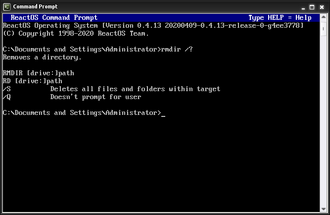
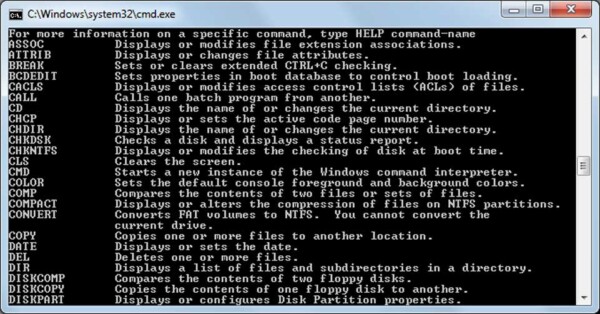
DOS Commands List (Easy Reference), This page lists common DOS commands, explained in plain English, and links to full step-by-step guides.
If you are new, start with the Beginner Commands first.
If you are troubleshooting, use this page to jump straight to what you need.
Beginner-Friendly DOS Commands
These are the best commands to learn first:
- DIR – List files and folders
- CD – Change directories
- COPY – Copy files
- MOVE – Move files
- DEL – Delete files safely
- MD / MKDIR – Create folders
- RD / RMDIR – Remove folders
- TREE – View folder structure
- TYPE – View text files
- ATTRIB – File attributes
- CLS – Clear the screen
- HELP – List commands
- EXIT – Close Command Prompt
Each command has its own dedicated guide with examples and safety notes.
DOS Commands A–Z
Use this alphabetical list to quickly find a command.
A
- ATTRIB – View and change file attributes
C
- CD – Change directories
- CLS – Clear the screen
- COPY – Copy files
D
- DEL – Delete files
- DIR – List files and folders
E
- EXIT – Close Command Prompt
H
- HELP – Display command help
M
- MD / MKDIR – Create directories
- MOVE – Move files
R
- RD / RMDIR – Remove directories
T
- TREE – Display folder structure
- TYPE – View text file contents
(More commands will be added as this section grows.)
How to Use This Page
If you are:
- Learning DOS → Start with Beginner Commands
- Fixing a problem → Use the A–Z list
- Following a guide → Jump directly to the command
Each command page links:
- Back to this index
- To related commands
- To beginner explanations
This keeps navigation simple and fast.
DOS Commands vs Command Prompt vs PowerShell
This page focuses on DOS commands as used in Command Prompt (CMD).
Many of these commands:
- Still work in modern Windows
- Appear in recovery environments
- Are referenced in troubleshooting guides
Once comfortable, users can progress to:
- Advanced CMD usage
- PowerShell equivalents
- Windows repair commands
Safety Notes for Beginners
Before running any command:
- Use
dirto confirm files and folders - Double-check file names
- Avoid wildcards until confident
- Do not delete system files
Every command guide includes safety guidance.
Where to Go Next
Recommended next sections:
- Common DOS Problems & Fixes
- Using DOS for Windows Repair
- DOS Commands for Beginners
- DOS vs Command Prompt vs PowerShell
These pages build deeper understanding and real-world confidence.