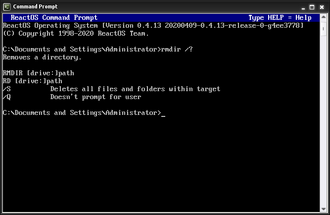
DOS Commands Not Working?, If a DOS command fails, the issue is usually not the command itself.
Most errors are caused by:
- Being in the wrong folder
- Missing permissions
- Typing mistakes
- Hidden or protected files
This page explains the most common DOS and Command Prompt errors, what they mean, and how to fix them safely.
“Command Is Not Recognised as an Internal or External Command”
What This Means
Windows cannot find the command you typed.
Common Causes
- Typo in the command
- Command does not exist
- The command is not available in CMD
How to Fix It
- Check spelling carefully
- Try:
help - Use:
command /? - Confirm the command is a DOS/CMD command (not PowerShell-only)
“Access Is Denied”
What This Means
You do not have permission to perform the action.
Common Causes
- Protected folders
- System files
- Administrator rights required
How to Fix It
- Close Command Prompt
- Reopen it as Administrator
- If deleting a file, check attributes:
attrib filename
“The System Cannot Find the File Specified”
What This Means
The file or folder does not exist at the location you specified.
Common Causes
- Wrong folder
- Incorrect filename
- Missing file extension
How to Fix It
- Run:
dir - Confirm the file exists
- Use the full path if needed:
dir C:\Path\To\File
Files Will Not Delete Using DEL
Common Causes
- File is read-only
- File is hidden or system-protected
- File is in use
How to Fix It
- Check attributes:
attrib filename - Remove restrictions:
attrib -r -h -s filename - Try deleting again:
del filename
Folder Will Not Delete Using RD
Common Causes
- Folder is not empty
- Files inside are protected
How to Fix It
- View contents:
dir foldername - Remove recursively:
rd /s foldername - Confirm carefully before proceeding
Output Scrolls Too Fast to Read
What This Means
Command output is longer than the screen.
How to Fix It
Use paging:
command | more
Example:
dir | more
Command Prompt Opens Then Closes Immediately
Common Causes
- Running a script with EXIT
- Double-clicking a batch file
How to Fix It
- Open Command Prompt manually
- Run the command inside the window
- Remove
exitfrom scripts when testing
Files Appear to Be Missing
Common Causes
- Hidden attribute enabled
- System attribute enabled
How to Fix It
- Show attributes:
attrib - Remove hidden/system flags:
attrib -h -s filename
Best Practices to Avoid DOS Errors
Before running any command:
- Use
dirto confirm location - Double-check file names
- Avoid wildcards when learning
- Never delete system folders
- Use Administrator mode only when needed
These steps prevent most mistakes.
Where to Go Next
If you are:
- Learning → Start with DOS Commands for Beginners
- Fixing Windows → Go to Using DOS for Windows Repair
- Comparing tools → See DOS vs Command Prompt vs PowerShell