What Does the CHKDSK Command Do?, The CHKDSK command (short for Check Disk) is used to scan a drive for file system errors and disk problems.
CHKDSK can:
- Find corrupted files
- Fix file system errors
- Identify bad sectors
- Improve system stability
It is one of the most important commands used in Windows repair.
When Should You Use CHKDSK?
Use CHKDSK if:
- Windows crashes or freezes
- Files become corrupted
- You see disk-related error messages
- Your PC shuts down unexpectedly
- Startup repair fails
CHKDSK is commonly recommended by Microsoft and IT professionals.
Basic CHKDSK Command Syntax
The simplest form is:
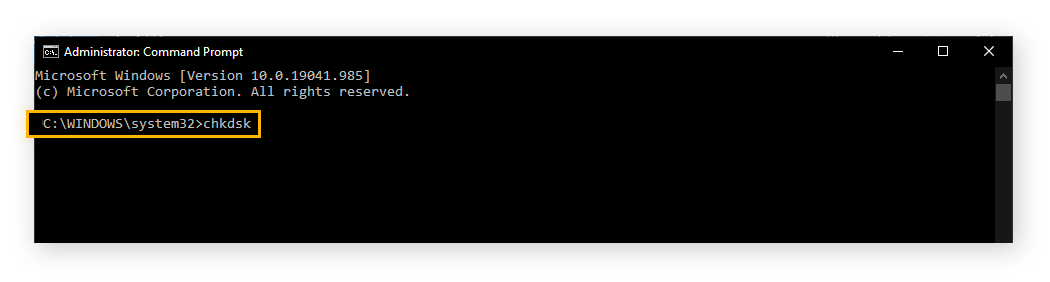
chkdsk
This scans the current drive without fixing errors.
Scanning a Specific Drive
To check a specific drive:
chkdsk C:
This scans the C: drive and reports problems.
Fixing Errors Automatically (Most Common)
To scan and fix errors:
chkdsk C: /f
/ftells Windows to repair errors- You may be prompted to run it at restart
Type Y and reboot if asked.
Checking for Bad Sectors (Deeper Scan)
To scan for physical disk problems:
chkdsk C: /r
This command:
- Finds bad sectors
- Attempts data recovery
- Takes significantly longer
⚠️ Use /r only when necessary.
CHKDSK /F vs /R (Important Difference)
- /f → fixes file system errors
- /r → checks for bad sectors and fixes errors
/r includes /f, but takes much longer.
Running CHKDSK When Windows Won’t Start
From Windows Recovery Command Prompt:
chkdsk C: /f
This is often more effective because:
- Files are not in use
- The disk can be locked properly
Common CHKDSK Messages Explained
“Cannot lock current drive”
This means:
- Windows is using the disk
Solution:
- Allow CHKDSK to run at restart
- Or run it from recovery mode
“Windows has scanned the file system and found no problems”
Good news — no errors were detected.
CHKDSK Appears Stuck
Large drives can take hours.
Do not interrupt unless absolutely necessary.
Is CHKDSK Safe?
Yes — when used correctly.
Best practices:
- Start with
/f - Use
/ronly if problems persist - Never power off mid-scan
- Back up important data if possible
CHKDSK is a repair tool, not a deletion tool.
CHKDSK vs SFC (Quick Comparison)
- CHKDSK → disk and file system errors
- SFC → corrupted Windows system files
They are often used together during repair.
What to Learn After CHKDSK
The next essential repair command is:
SFC– System File Checker
This checks Windows files rather than the disk itself.
Where to Go Next
Recommended next guides: