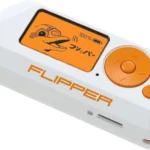
Flipper Zero NFC Guide, NFC (Near Field Communication) is one of the most approachable and useful parts of the Flipper Zero. It is also one of the most misunderstood. This guide explains exactly how to use the NFC section, what you can realistically do in 2026, and what extra hardware (if any) you need.
This guide assumes no prior technical knowledge.
What NFC on the Flipper Zero Is Used For
NFC on the Flipper Zero allows you to:
Read NFC tags and cards you own
Identify the type of NFC chip
Save NFC scans for reference
Write data to supported blank NFC tags
Learn why some cards are secure and others are not
It does not allow you to bypass security or access protected systems.
What You Need to Use NFC
Required:
Flipper Zero (no add-ons needed)
Optional but recommended:
Blank NFC tags (NTAG213, NTAG215, or NTAG216)
These are cheap and ideal for learning and automation.
You do not need:
External antennas
Wi-Fi Dev Board
Any paid apps
Where the NFC Antenna Is Located
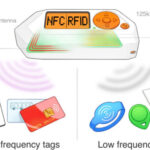
The NFC antenna is built into the back of the Flipper Zero, roughly in the centre.
For best results:
Hold the card flat
Keep it still
Do not tap repeatedly
Avoid metal surfaces underneath
Positioning matters more than speed.
Step-by-Step: How to Read an NFC Tag
- From the main menu, select NFC
- Select Read
- Place the NFC card or tag flat against the back of the Flipper
- Hold it steady for 1–3 seconds
- Wait for the scan to complete
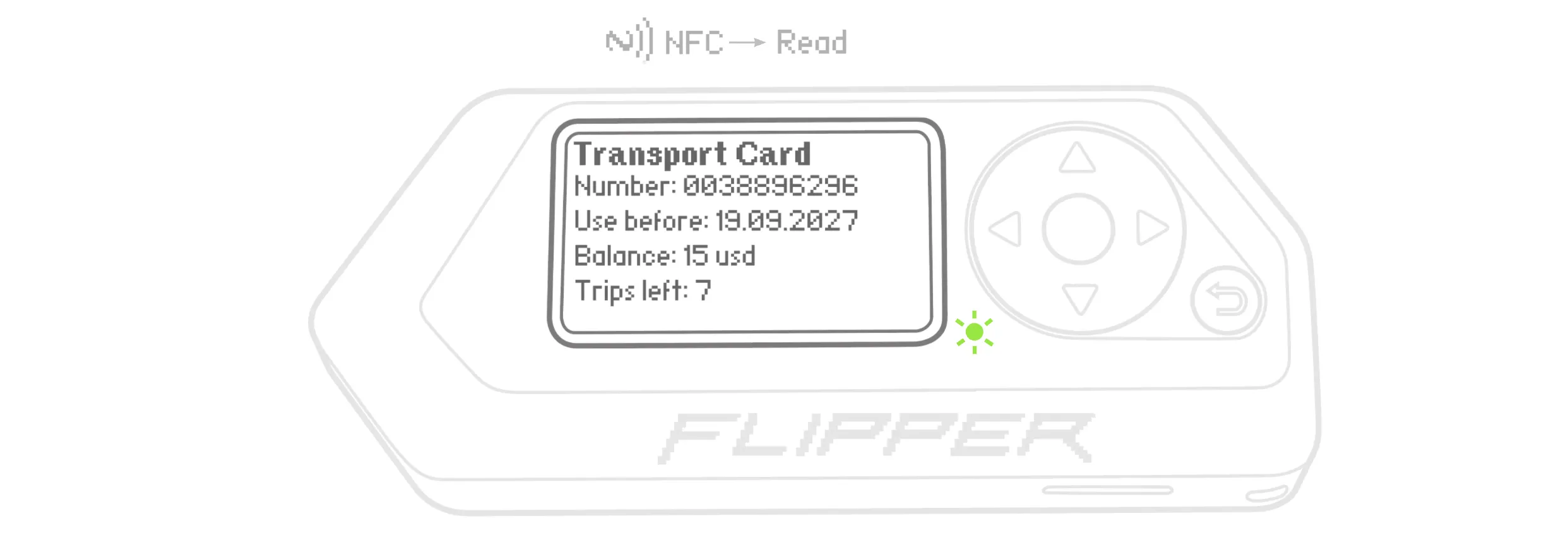
- Review the information shown
- Select Save if you want to store it
What you’ll typically see:
Tag type (e.g. NTAG213, MIFARE, DESFire)
UID (identifier)
Security status (open or encrypted)
What “Encrypted” Means (Very Important)
If the Flipper Zero shows:
Encrypted
Protected
Limited data
This is not an error.
It means:
The card is secure
The data is protected
The Flipper is working correctly
Common examples of encrypted cards:
Bank cards
Modern building access cards
Hotel key cards
Transport cards
Phones often hide this information. The Flipper shows it honestly.
Step-by-Step: How to Test NFC Properly (Beginner Test)
If you want to confirm NFC is working:
Use a cheap NFC sticker (NTAG213)
Open NFC → Read
Scan the sticker
You should see full readable data
If this works, your Flipper NFC is functioning correctly.
Step-by-Step: How to Write to a Blank NFC Tag
This is one of the safest and most useful beginner activities.
- Open NFC
- Go to Saved
- Select a compatible saved NFC record
(or create one if the firmware supports it) - Choose Write
- Place a blank NFC tag on the back
- Hold still until confirmed
You can use this for:
Phone automations
Website links
Wi-Fi sharing (non-sensitive)
Learning how NFC writing works
What You CANNOT Do With NFC (2026 Reality Check)
You cannot:
Clone bank cards
Copy secure access cards
Bypass encryption
Access buildings
Modify permissions
If a video claims otherwise, it is outdated or misleading.
Common NFC Problems and Fixes
“Nothing happens when I scan”
• Card is encrypted → expected
• Wrong positioning → move slowly
• Using RFID menu instead of NFC
“My phone reads it but Flipper doesn’t”
• Phone hides security details
• Flipper shows the real status
“It worked once, now it doesn’t”
• Restart the Flipper
• Try a different NFC tag
• Update firmware
Best Beginner NFC Experiments
If you want quick wins:
Create an NFC tag that opens a website
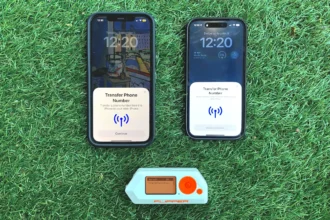
Scan NFC tags on smart devices
Compare an old NFC tag vs a modern encrypted one
Use multiple blank tags and label them
These build understanding fast.
Do You Need Any Add-Ons for NFC?
Most users only need:
A pack of NTAG NFC stickers (cheap, safe, reusable)
You do not need advanced hardware for NFC learning.
When NFC Is “Not the Right Tool”
If your goal is:
Opening doors
Cloning access cards
Testing payments
NFC on the Flipper Zero is intentionally limited and will not do this.
Final Thoughts on NFC
NFC is one of the best places to start with the Flipper Zero because it:
Works out of the box
Is easy to test safely
Teaches real security concepts
Gives immediate feedback
Understanding NFC also makes RFID and Sub-GHz much easier to grasp later.
Next in the Series
The natural next deep dive is:
Flipper Zero RFID Guide (125 kHz): Step-by-Step and What You Need