Flipper Zero Not Detecting Signals in 2026? Updated Troubleshooting Guide
If your Flipper Zero isn’t detecting RFID, NFC, Sub-GHz, infrared, or Bluetooth broadcasts in 2026, you’re not alone. As wireless devices evolve and firmware becomes more advanced, the Flipper Zero sometimes needs updated settings, fresh calibration, or simple adjustments to work correctly. This guide provides a clear, step-by-step troubleshooting process to help you fix detection issues quickly and safely.
These tips apply to beginners, casual users, and those using the 2026 firmware.
Common Reasons Your Flipper Zero Isn’t Detecting Signals
Most detection issues come down to one of the following:
Outdated firmware
Incorrect scanning mode
Weak battery
Interference from nearby devices
Unsupported frequency or tag type
Signal encryption
Damaged internal antenna
Incorrect placement of the card or remote
Reduced sensitivity due to power-saving mode
The good news is that nearly all of these problems can be fixed with simple steps.
Check Your Firmware Version First
The 2026 firmware includes major improvements in:
RFID recognition
NFC stability
Sub-GHz frequency filtering
Infrared libraries
Bluetooth scanning reliability
If your firmware is outdated, detection will be inconsistent.
To check:
Open the mobile app
Go to Device
Tap Firmware
Install the latest update
After updating, reboot the device and try scanning again.
Ensure You Are Using the Correct Scan Mode
Different technologies require different scanning menus:
RFID → Low-frequency tags (125 kHz)
NFC → High-frequency tags (13.56 MHz)
Sub-GHz → Wireless remotes, sensors (433–868 MHz)
Infrared → TV and appliance remotes
Bluetooth → Broadcast detection only
If you’re in the wrong mode, the Flipper simply won’t detect anything.
Check Battery Level and Disable Power-Saving Mode
Low battery reduces antenna performance.
If the battery is under 20%, the Flipper Zero may:
Lower its scanning sensitivity
Struggle to capture RF bursts
Fail to read NFC or RFID tags
Charge the device and disable power-saving mode, then retry.
Fixing RFID and NFC Detection Issues
If RFID or NFC isn’t working:
Ensure the card is placed directly on the back of the Flipper
Move slowly across the back panel to find the antenna “sweet spot”
Avoid holding the card at an angle
Remove metal objects like keys or phone cases from the area
Confirm the tag type is supported
Unsupported tags will always fail to read—for example, encrypted building cards or banking cards.
Fixing Sub-GHz Detection Issues
If Sub-GHz signals aren’t being detected:
Make sure the remote belongs to a device you own
Point the remote directly at the Flipper
Ensure the remote has a working battery
Try scanning from 5–10 cm away (too close reduces signal clarity)
Check whether the remote uses rolling-code encryption
Verify that the frequency is allowed in your region
Rolling-code systems will show activity but cannot be decoded—this is normal.
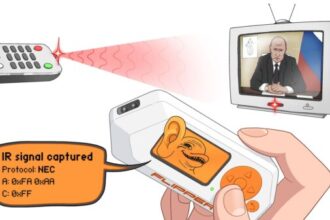
Fixing Infrared (IR) Detection Issues
Common IR issues include:
Blocked IR receiver
Bright sunlight overpowering the sensor
Dirty or fingerprint-covered IR window
Incorrect remote type
To fix:
Move indoors away from sunlight
Clean the IR window on the Flipper
Hold the remote 2–5 cm away
Ensure you are pressing an active button
Most TVs, AC units, and projectors should be detected instantly.
Fixing Bluetooth Broadcast Detection Issues
Bluetooth devices must be in discovery or broadcast mode.
If nothing is detected:
Enable Bluetooth on the Flipper
Restart the mobile app
Ensure the device you’re scanning is actively broadcasting
Move within 1–2 metres
The Flipper Zero cannot pair with Bluetooth devices—it can only detect broadcast signals.
Environmental Interference Can Block Signals
Signal detection can fail if:
You’re standing near large metal surfaces
You’re inside a car
You’re close to Wi-Fi routers or high-power transmitters
Multiple devices are broadcasting on the same frequency
Move to a quieter location and try again.
Check Whether the Device You’re Scanning Is Even Compatible
Some systems are simply not detectable:
Encrypted modern car keys
High-security NFC tags
Banking cards
Rolling-code garage fobs
Smart locks with encrypted challenge-response systems
In these cases, the Flipper Zero may detect a burst but cannot read or interpret it.
Reset Settings and Restart the Device
If everything fails:
Turn off the Flipper Zero
Wait 10 seconds
Turn it back on
Reset radio settings under the Sub-GHz menu
This fixes many minor firmware glitches.
Hardware Issues to Look For
Rarely, detection fails due to physical damage:
Cracked antenna
Damaged IR window
Loose internal connector
Water exposure
Drop impact
If the device never detects anything after all steps, hardware repair may be needed.
Final Thoughts
Most signal detection problems in 2026 are caused by outdated firmware, incorrect scanning methods, or environmental interference. The Flipper Zero remains a powerful learning tool, but it relies heavily on proper setup and accurate scanning technique. Following these steps should quickly resolve the majority of issues and get your device detecting signals reliably again.