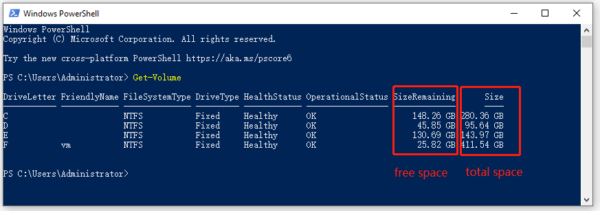
What this does
This PowerShell command shows how to check disk space on your Windows drives. It is a fast way to identify low-storage issues without clicking through File Explorer.
When you’d use this
- Windows displays low disk space warnings
- A PC is slow and storage may be full
- Before installing updates or large applications
- As part of a quick system health check
PowerShell command (copy and paste)
Get-PSDrive -PSProvider FileSystem
What the output means
- Name – the drive letter
- Used – space already used
- Free – available space remaining
This instantly shows which drive is causing the problem.
Common mistakes to avoid
- Only checking the C: drive and ignoring others
- Forgetting cloud sync folders (such as OneDrive) still use local disk space
- Assuming “Documents” is small while hidden folders are large
Efficiency tip (show results in GB)
Get-PSDrive -PSProvider FileSystem |
Select-Object Name,
@{Name="Used (GB)";Expression={[math]::Round($_.Used / 1GB, 2)}},
@{Name="Free (GB)";Expression={[math]::Round($_.Free / 1GB, 2)}}
This format is easier to understand and ideal for:
- Support tickets
- User explanations
- Quick reports
Why this improves efficiency
- Faster than browsing multiple drives
- Shows all disks in one view
- Perfect for remote troubleshooting
- Safe to run without administrator access