What this does
This PowerShell command lets you identify a running application and close a stuck application when it becomes unresponsive. It avoids a full reboot and is faster than opening Task Manager.
When you’d use this
- An application has frozen
- “Not responding” appears and will not close
- Task Manager is slow or unavailable
- You want to close a specific app quickly
Step 1: Find the running process
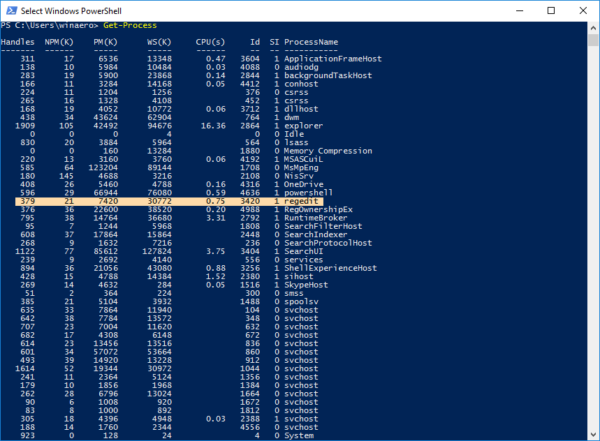
Get-Process
This lists all running applications and background processes.
Step 2: Find a specific application
Get-Process chrome
Replace chrome with the name of the application you want to find.
Step 3: Close the stuck application
Stop-Process -Name chrome
This immediately closes the application.
What the output means
- If the command runs without errors, the process has been stopped
- If you see an access error, administrator permissions may be required
Common mistakes to avoid
- Stopping system processes you do not recognise
- Forgetting to save work before closing an application
- Using the wrong process name (check spelling carefully)
Efficiency tip (force close if needed)
Stop-Process -Name chrome -Force
Only use -Force if the application will not close normally.
Why this improves efficiency
- Faster than restarting the PC
- More precise than Task Manager
- Ideal for remote support scenarios
- Reduces unnecessary downtime
Related PowerShell efficiency posts
- PowerShell Efficiency: The Fast Way to Manage Windows
- Check when a Windows PC was last restarted
- Check disk space in seconds using PowerShell