What this guide is about
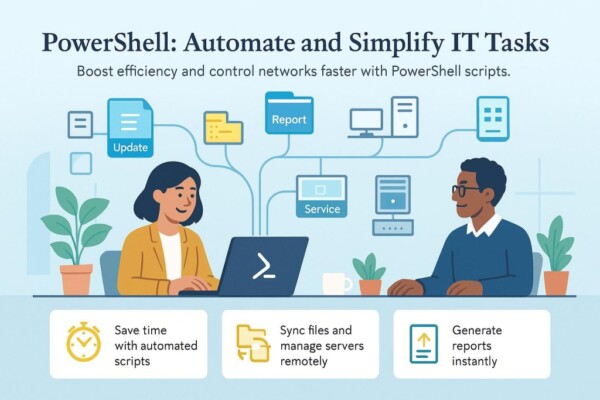
PowerShell is one of the fastest ways to manage Windows efficiently. This guide focuses on simple, practical PowerShell commands that reduce clicking, speed up troubleshooting, and help you get results in seconds rather than minutes.
This is not about complex scripting. It is about working smarter with PowerShell.
What “PowerShell efficiency” actually means
PowerShell efficiency is about:
- Getting answers quickly
- Reducing repetitive manual work
- Standardising common checks
- Avoiding guesswork when troubleshooting
Instead of clicking through menus, PowerShell lets you ask Windows direct questions and get clear answers immediately.
Who this guide is for
This guide is written for:
- End users who want quicker fixes
- Junior IT staff learning PowerShell
- Busy IT professionals who value speed
- Anyone supporting Windows PCs or servers
No scripting knowledge is required to follow this series.
Safety first: 5 rules before running PowerShell commands
- Read the description first – never paste blindly
- Most commands here are read-only and safe
- Administrator access is only required when stated
- Test on one machine before repeating elsewhere
- If in doubt, stop – PowerShell does exactly what you tell it
The PowerShell Efficiency Toolkit
This series is broken into short, focused posts you can use immediately.
System health & quick checks
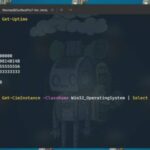
- Check when a PC was last restarted
- Check disk space in seconds
- View system and hardware information
Performance & troubleshooting
- Find and close stuck applications
- Check running services quickly
- Identify common causes of slow PCs
Networking & connectivity
- View IP and DNS information
- Flush DNS cache safely
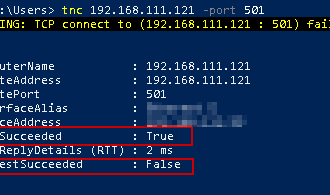
- Test if a network port is open
Users & permissions
- List local users
- Check who has administrator access
- Add or remove users safely
Logs, reporting & automation
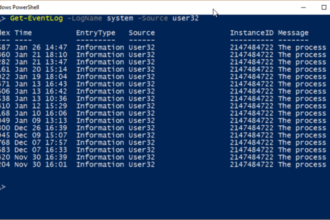
- Pull recent system errors
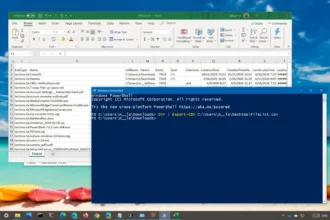
- Export results to CSV
- Save outputs for support records
Each post focuses on one task, explained clearly, with copy-and-paste commands.
Why PowerShell is faster than clicking
Using PowerShell:
- Removes guesswork
- Reduces human error
- Produces consistent results
- Scales easily from one PC to many
Once you know a handful of commands, everyday support tasks become significantly faster.
How to open PowerShell (30 seconds)
- Press Start
- Type PowerShell
- Click Windows PowerShell
- Right-click → Run as administrator (only when required)
That is all you need to begin.
Start here: essential PowerShell efficiency posts
Begin with these core guides:
- Check when a Windows PC was last restarted
- Check disk space in seconds
- Find and close a stuck application
- View IP and DNS details quickly
- Export PowerShell results to CSV
Each guide builds confidence and saves time immediately.
Final thought
PowerShell is not just for advanced administrators. Used correctly, it is one of the most efficient tools available on any Windows system.
This series is designed to help you work faster, fix problems sooner, and rely less on guesswork.