What this does
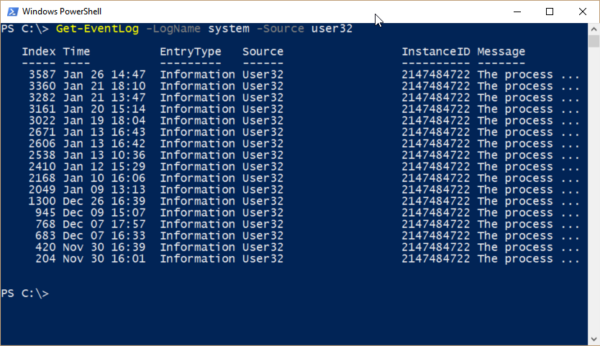
This PowerShell command retrieves recent system error events from Windows. It allows you to quickly see what has gone wrong without opening Event Viewer and manually filtering logs.
When you’d use this
- A PC has crashed or restarted unexpectedly
- Applications are failing without clear messages
- You need evidence before deeper troubleshooting
- To confirm whether an issue is recurring
PowerShell command (copy and paste)
Get-WinEvent -LogName System -MaxEvents 20 |
Where-Object {$_.LevelDisplayName -eq "Error"}
What the output means
- TimeCreated – when the error occurred
- ProviderName – the service or component involved
- Message – a description of the error
These entries often explain why a system is unstable.
Common mistakes to avoid
- Assuming every error is critical (many are informational)
- Ignoring the time of the error relative to the problem
- Overlooking repeating errors, which are usually more important
Efficiency tip (last 24 hours only)
Get-WinEvent -LogName System |
Where-Object {
    $_.LevelDisplayName -eq "Error" -and
    $_.TimeCreated -gt (Get-Date).AddHours(-24)
}
This filters out older noise and focuses on recent problems.
Why this improves efficiency
- Faster than Event Viewer
- Removes unnecessary log clutter
- Ideal for remote support
- Helps pinpoint root causes quickly