What this does
View IP and DNS Information Quickly Using PowerShell, This PowerShell command shows your computer’s IP address, network adapter, gateway, and DNS settings in one place. It is the quickest way to confirm whether a device is correctly connected to the network.
When you’d use this
- Internet access is not working
- A PC is connected but cannot reach websites
- You need to confirm DNS or gateway settings
- During first-line network troubleshooting
PowerShell command (copy and paste)
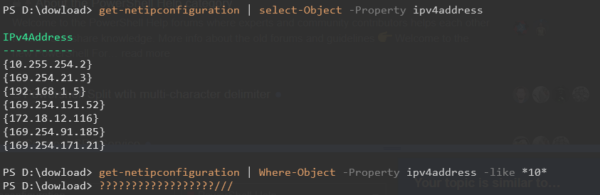
Get-NetIPConfiguration
What the output means
- InterfaceAlias – the network adapter in use (Ethernet or Wi-Fi)
- IPv4Address – the device’s IP address
- IPv4DefaultGateway – the router or gateway
- DNSServer – the DNS servers being used
This confirms whether the PC is correctly configured on the network.
Common mistakes to avoid
- Checking the wrong adapter (for example, a disabled Wi-Fi adapter)
- Assuming a valid IP address means DNS is working
- Ignoring VPN adapters, which can change routing
Efficiency tip (show only active adapters)
Get-NetIPConfiguration |
Where-Object {$_.IPv4Address -ne $null}
This removes unused or disconnected adapters from the output.
Why this improves efficiency
- Faster than clicking through Network Settings
- Shows all critical network details in one command
- Ideal for remote troubleshooting
- Reduces guesswork during connectivity issues