Clicked a Suspicious Email Link – Act Quickly
If you’ve clicked a suspicious email link, don’t panic — but do act quickly. Many phishing attacks rely on fear and delay. This guide walks you through exactly what to do next to protect your computer, your accounts, and your money.
What Happens When You Click a Suspicious Email Link
When people search clicked a suspicious email link, it usually means one of three things happened:
- The link led to a fake login page
- A file started downloading
- Nothing obvious happened, but something feels wrong
Even if nothing appeared to happen, your device or accounts could still be at risk.
Step 1: Stop and Do Not Click Anything Else
If you’ve clicked a suspicious email link, do not:
- Enter usernames or passwords
- Download attachments
- Click follow-up buttons
- Reply to the email
Close the browser tab immediately.
Step 2: Disconnect From the Internet
As soon as you realise you’ve clicked a suspicious email link:
- Turn off Wi-Fi
- Unplug the network cable
This prevents malware from downloading additional files or sending data out.
Step 3: Check What You Clicked
Before you forget details, take note of:
- The email sender address
- The link destination (hovered or opened page)
- Any files downloaded
If possible, take a photo or screenshot using your phone. This helps if you need support later.
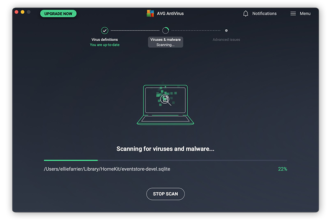
Step 4: Run a Full Virus and Malware Scan
After clicking a suspicious email link, always scan your PC.
Do this:
- Open Windows Security
- Run a Full Scan
- Remove or quarantine anything found
For added safety, run one additional free malware scanner.
Step 5: If You Entered a Password, Change It Immediately
If you clicked a suspicious email link and typed in a password, assume it is compromised.
From a different, clean device:
- Change the password immediately
- Enable two-factor authentication
- Log out of all sessions if possible
Start with your email password — this is the most important one.
Step 6: Check Your Email Account for Rules or Forwarding
Some phishing attacks silently add rules to your email.
Check for:
- Auto-forwarding rules
- Hidden inbox rules
- Deleted security alerts
Remove anything you didn’t create.
Step 7: Check Your Bank and Online Accounts
If you’ve clicked a suspicious email link, check financial accounts even if you didn’t enter details.
Look for:
- Unrecognised payments
- New payees
- Login alerts
If you see anything suspicious, contact your bank immediately.
Step 8: Watch for Follow-Up Scams
After clicking a suspicious email link, attackers may try again.
Be alert for:
- “We noticed unusual activity” emails
- Password reset messages you didn’t request
- Urgent follow-ups
These are often part of the same attack.
Step 9: Report the Email as Phishing
Reporting helps protect others.
Do this:
- Mark the email as phishing in your email app
- In the UK, forward phishing emails to report@phishing.gov.uk
Then delete the message.
How to Avoid Clicking a Suspicious Email Link Again
To reduce future risk:
- Check sender addresses carefully
- Be cautious with urgent or threatening language
- Never click links asking for login details
- Access accounts by typing the website address manually
Most phishing emails rely on speed and panic.
Summary: Clicked a Suspicious Email Link – Damage Can Be Limited
If you clicked a suspicious email link, quick action makes a huge difference. Disconnecting from the internet, scanning your PC, changing passwords, and checking accounts will stop most attacks before real damage occurs.