Fake Virus Warning – Read This First
If a fake virus warning on your screen suddenly appears on your screen claiming your computer is infected, you are not alone. These warnings are extremely common and are designed to scare you into calling scammers or paying for fake software. This guide shows you exactly how to close a fake virus warning safely and what to do next.
What Is a Fake Virus Warning?
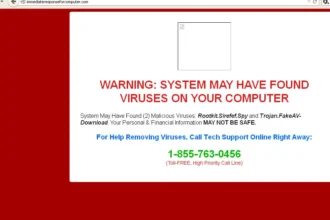
A fake virus warning is a scam message that appears in your web browser, not from Windows or your real antivirus. Its goal is to frighten you into taking immediate action.
Fake virus warnings often:
- Claim your PC is “severely infected”
- Display a phone number to call “support”
- Use flashing colours, alarms, or countdown timers
- Try to stop you closing the browser
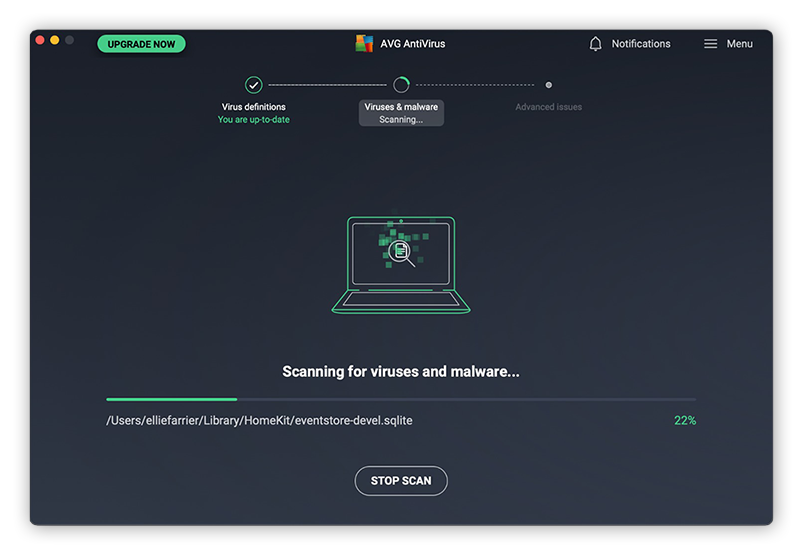
Real antivirus software does not behave this way.
How to Tell If a Virus Warning Is Fake
If you are unsure whether a message is real or a fake virus warning, check the following:
- It appears inside a browser (Chrome, Edge, Firefox)
- It asks you to call a phone number
- It demands immediate payment
- It uses aggressive language like “ACT NOW”
- It does not come from Windows Security
If you see any of these signs, it is almost certainly a fake virus warning.
Step 1: Do Not Click Anything on the Warning
When a fake virus warning appears, do not click:
- OK
- Cancel
- Fix Now
- Scan Now
- Any phone number
Clicking inside the warning can install more malware or redirect you to scammers.
Step 2: Close the Browser Safely
Try closing the browser normally first.
If that does not work:
- Press ALT + F4 to close the window
If the warning still won’t close:
- Press CTRL + SHIFT + ESC
- Open Task Manager
- Select your browser
- Click End task
This safely stops the fake virus warning.
Step 3: Reopen the Browser Without Restoring Tabs
When you reopen your browser after a fake virus warning, you may be asked to restore previous tabs.
Always choose:
- “No”
- “Don’t restore”
- “Start fresh”
Restoring tabs can reload the same scam page.
Step 4: Clear Browser Data After a Fake Virus Warning
Clearing browser data helps remove traces of the fake page.
Do this:
- Open browser settings
- Find “Clear browsing data”
- Clear cache and cookies
- Clear at least the last 7 days
This prevents the fake virus warning from reappearing.
Step 5: Check Browser Notification Permissions
Many fake virus warnings come from websites you accidentally allowed to send notifications.
Check this immediately:
For Chrome:
- Settings → Privacy and security
- Site settings → Notifications
- Remove any sites you do not recognise
For Edge:
- Settings → Cookies and site permissions
- Notifications
- Remove suspicious websites
Removing these often stops fake virus warnings completely.
Step 6: Run a Quick Security Scan
Although a fake virus warning itself is usually just a scam page, it can sometimes come with adware.
Do this next:
- Open Windows Security
- Run a Quick Scan
- If anything is detected, remove it
For extra safety, you can run a second free malware scan.
Step 7: Never Call the Phone Number in a Fake Virus Warning
Scammers behind fake virus warnings often pretend to be:
- Microsoft
- Windows Support
- Antivirus companies
If you call them, they may:
- Ask for remote access
- Charge hundreds of pounds
- Install real malware
Microsoft and antivirus companies do not cold-call users and do not put phone numbers in browser pop-ups.
What to Do If You Already Clicked or Called
If you interacted with a fake virus warning:
- Disconnect from the internet
- Uninstall any software they asked you to install
- Run a full virus and malware scan
- Change passwords from another device
- Contact your bank if payment details were shared
Acting quickly limits damage.
How to Avoid Fake Virus Warnings in the Future
To reduce the chance of seeing another fake virus warning:
- Avoid illegal streaming and download sites
- Be careful with “Download” buttons on unfamiliar sites
- Keep your browser and Windows updated
- Do not allow notifications from unknown websites
Summary: Fake Virus Warnings Are Scams, Not Real Infections
A fake virus warning is designed to scare you, not help you. By closing the browser safely, clearing data, removing notification permissions, and scanning your PC, you can fix the issue without paying anyone.