How to Switch Off the Flipper Zero and Basic Use Guide
If you’re new to the Flipper Zero, one of the first things you’ll want to learn is how to switch it off properly and how to use the core controls. Even though the device looks simple, new users often miss the shutdown shortcut or struggle to navigate the interface. This guide explains, in clear steps, how to turn the Flipper Zero off, how to restart it, and how to use all basic functions confidently.
This is the ideal beginner introduction for anyone using the device in 2026.
How to Switch Off the Flipper Zero
The Flipper Zero doesn’t turn off using a normal menu. Instead, it relies on a button combination.
To switch off the device:
Hold down the Back button
Keep holding for 3–5 seconds
Wait until the screen fades to black
Release the Back button
Your Flipper Zero is now fully powered off.
How to Switch It Back On
To turn it on:
Press the OK button once
The screen will light up and show the 2026 Flipper OS splash screen
The device boots to the main menu
This process takes only a few seconds with the latest firmware.
How to Restart (Reboot) the Flipper Zero
If the device feels slow, freezes, or becomes unresponsive, a reboot usually fixes the issue.
To reboot:
Hold OK + Back at the same time
Wait until the screen goes dark
Release the buttons
The device restarts automatically
This does not erase any data or settings.
Basic Controls and Navigation
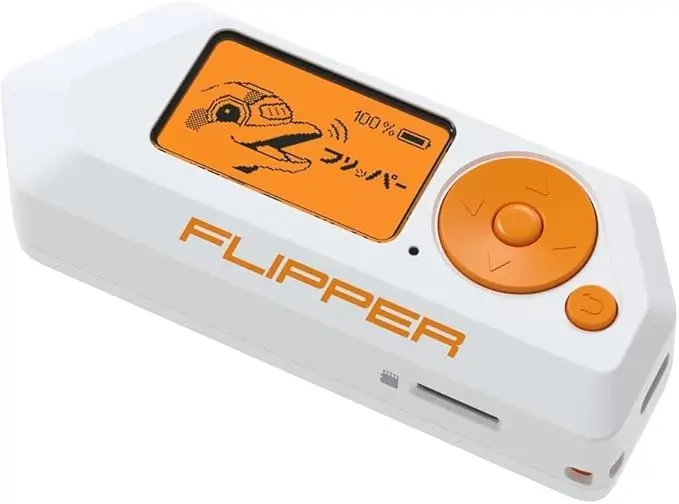
The Flipper Zero has a simple five-button interface:
OK – Select or confirm
Back – Go up one level or cancel
Left – Navigate left
Right – Navigate right
Up/Down – Move through menus
These controls allow you to move through menus, open apps, run scans, and return to the home screen at any time.
Understanding the Main Menu
When you turn the Flipper Zero on, you’ll see the main menu, which includes:
NFC – For reading NFC cards and tags
RFID – For scanning low-frequency RFID tags
Sub-GHz – For scanning supported wireless devices
Infrared – For analysing and testing IR remotes
Bluetooth (2026 firmware) – For detecting BLE broadcasts
Tools – Stopwatch, GPIO, battery settings, and system tools
Files – For browsing saved signals and app data
Settings – For display, power, firmware, and preferences
These sections cover everything you need for basic usage.
How to Read an NFC Tag
Select NFC from the main menu
Choose Read
Place your NFC tag on the back of the Flipper
Wait for the scan to complete
You’ll see the tag type and any public information the Flipper is allowed to read.
How to Read an RFID Tag
Open RFID from the menu
Press Read
Hold your tag against the back of the device
The Flipper displays the tag format and details
This works for low-frequency 125 kHz tags that you legally own.
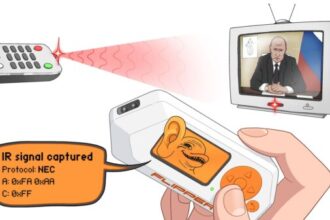
How to Test an Infrared Remote
Open Infrared
Press Read
Point your remote at the Flipper’s IR window
Press a button on the remote
If the signal is compatible, the Flipper will show the code type.
How to Scan for Sub-GHz Signals
Open Sub-GHz
Select Scan
Press a button on your own remote or sensor
The Flipper will show detected frequency and signal patterns
In 2026, the firmware automatically blocks restricted bands and encrypted systems.
How to Check Battery Level
Open Settings
Select Power
Battery percentage, temperature, and usage details appear
This helps you diagnose power issues or weak performance.
How to Put the Flipper Zero Into Sleep Mode
Press the Back button once to return to the home screen
Leave the device idle for a short period
It will enter low-power sleep mode automatically
Sleep mode preserves battery without fully shutting down the device.
When Should You Fully Power Off the Flipper Zero?
Turning off the device completely is useful when:
Travelling
Storing the device for long periods
Battery is low
Performing hardware troubleshooting
Resetting after a firmware update
For everyday use, sleep mode is usually fine.
Final Thoughts
Learning how to switch off the Flipper Zero and understanding its basic functions is the foundation for everything else. Once you know the controls, how to reboot, and how to access the core tools, the device becomes much easier to use. This beginner guide covers all the essential steps so you can start exploring the Flipper Zero confidently in 2026.