This Windows Server end of life checklist helps businesses reduce risk, regain control, and plan an essential upgrade without disruption.
Why You Need a Windows Server End of Life Checklist
When a server approaches end of life, uncertainty grows. Questions pile up, risks feel abstract, and decisions get delayed. A structured checklist removes pressure and replaces guesswork with clarity.
This Windows Server end of life checklist is designed for businesses that want calm, confident planning rather than rushed reactions.
Step 1: Identify Your Current Windows Server Version
Start with absolute certainty.
- Confirm the exact Windows Server version
- Note whether it is mainstream or extended support
- Record the official end-of-life date
Assumptions create blind spots. Accuracy creates confidence.
Step 2: List All Roles and Services on the Server
Most servers do more than one job.
Check for:
- File services
- Active Directory
- SQL Server
- Remote Desktop / Terminal Services
- ERP or accounting applications
Hidden dependencies often cause the most disruption during upgrades.
Step 3: Check SQL Server and Application Lifecycles
An operating system may still be supported while its applications are not.
- Identify SQL Server version and support status
- Confirm ERP or line-of-business software compatibility
- Review vendor support statements
Unsupported software silently increases exposure.
Step 4: Review Backup and Recovery Capability
Before any change, recovery must be guaranteed.
- Confirm backups are running successfully
- Verify off-site or immutable copies exist
- Test restore procedures, not just backup logs
A working backup removes fear from every other step.
Step 5: Assess Hardware and Performance Limits
Older hardware often blocks clean upgrades.
- CPU compatibility with modern OS versions
- Available RAM and storage headroom
- Disk performance and failure risk
Ageing hardware adds pressure at exactly the wrong moment.
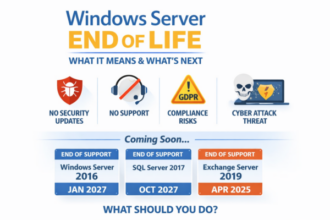
Step 6: Review Security and Compliance Impact
End-of-life systems affect more than IT.
Consider:
- GDPR obligations
- Cyber insurance requirements
- Audit and certification standards
- Ransomware exposure
Unsupported servers weaken your overall security posture.
Step 7: Decide Your Upgrade Path
There are three realistic routes:
- Upgrade the existing server (short-term relief)
- Replace hardware (higher upfront cost)
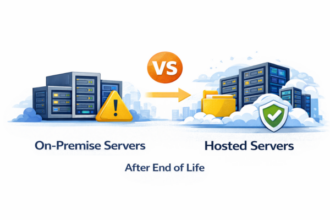
- Move to hosted or private cloud infrastructure
The right option depends on longevity, not habit.
Step 8: Plan Testing and Change Windows
Upgrades fail when testing is rushed.
- Build parallel environments where possible
- Test applications and user access
- Communicate timelines clearly
Preparation reduces disruption more than any technology choice.
Step 9: Document the New Lifecycle
Once upgraded, lock in future certainty.
- Record new end-of-life dates
- Schedule annual reviews
- Maintain a rolling 3–5 year roadmap
This prevents repeating the same problem.
Common Mistakes This Checklist Prevents
- Discovering SQL is unsupported too late
- Upgrading Windows but not applications
- Assuming backups work without testing
- Leaving planning until security updates stop
Each mistake increases stress, cost, and risk.
Final Thoughts
A Windows Server end of life checklist turns uncertainty into structure. Businesses that follow a clear process stay calm, compliant, and in control — even as technology evolves.
Ignoring end of life creates urgency. Planning removes it.